Connect BambooHR to Iru Identity so it reads the standard employee directory and keeps your Iru directory in sync as workers join, change, or leave.
Connecting BambooHR lets Iru pull employee records straight from BambooHR and
keep your directory in sync. When
someone is hired, changes roles, or leaves, those updates flow into Iru on their
own.BambooHR setup is quick: connect, then map your fields. There’s no report to
configure. Iru reads directly from BambooHR’s standard employee directory.
For the BambooHR-specific steps only. For concepts shared across all sync
connections (the unique identifier, required fields, IQL, and what happens on
each sync), see
Directory Sync.
1
Choose BambooHR
In Directory → Sync, select Connect Source and pick BambooHR.
2
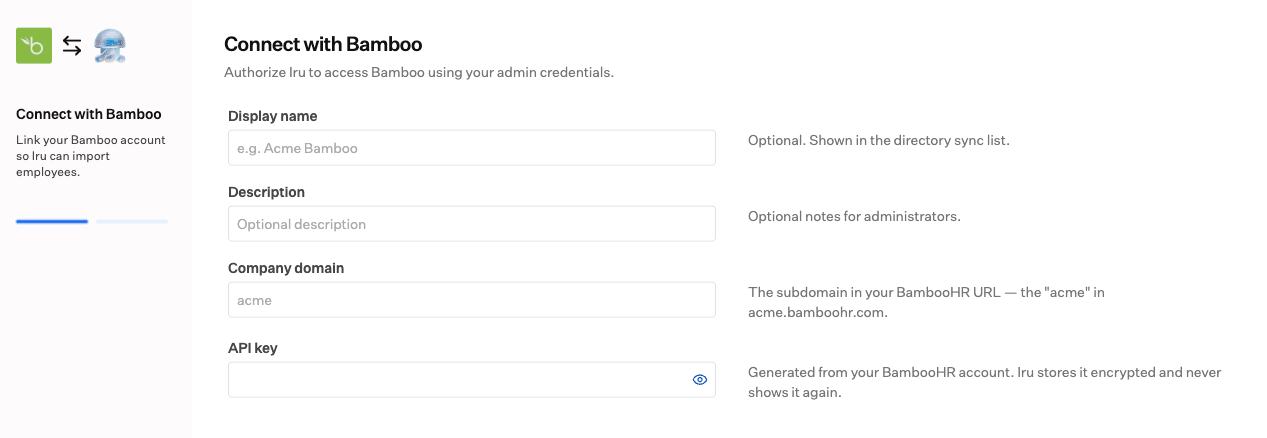
Enter connection details
Give the connection a display name and an optional description. Enter your
BambooHR company domain (the subdomain in your BambooHR URL, such as acme
from acme.bamboohr.com) and an API key generated from your BambooHR account.
Iru submits these credentials directly; there is no separate BambooHR window. Iru
stores the API key encrypted and does not show it again after you save.
Authorizing Iru with your BambooHR company domain and API key.
Use a dedicated admin or integration account to generate the API key, so the
connection keeps working regardless of any one user’s status.
3
Map your data to Iru
BambooHR has a standard set of employee fields (first and last name, work and
home email, phone numbers, job title, department, supervisor, hire date, address,
and employee ID), so Iru already knows what’s available and lays them out for you to
match. There’s nothing to build on the BambooHR side first.
Set a unique identifier, typically the BambooHR employee ID. Once you
save the connection, it can’t be changed.
Map the required attributes:email, first name, last name, and username
must be mapped; everything else is optional.
Transform with IQL when needed: pick a field, or write a short IQL
expression. Iru suggests the available BambooHR fields and checks the expression
as you type.
Examples with BambooHR fields:
Build a username from the work email: workEmail.split("@")[0]
Combine first and last name: firstName + " " + lastName
Prefer work email, fall back to home email: optional.ofNonZeroValue(workEmail).orValue(homeEmail)
See Map your data for more
on mapping, including the safe pattern for sometimes-blank fields.
4
Finish and turn it on
Save your mappings. You’ll land on the connection’s detail page. Review
everything, then Enable. A connection starts disabled, so enabling it kicks
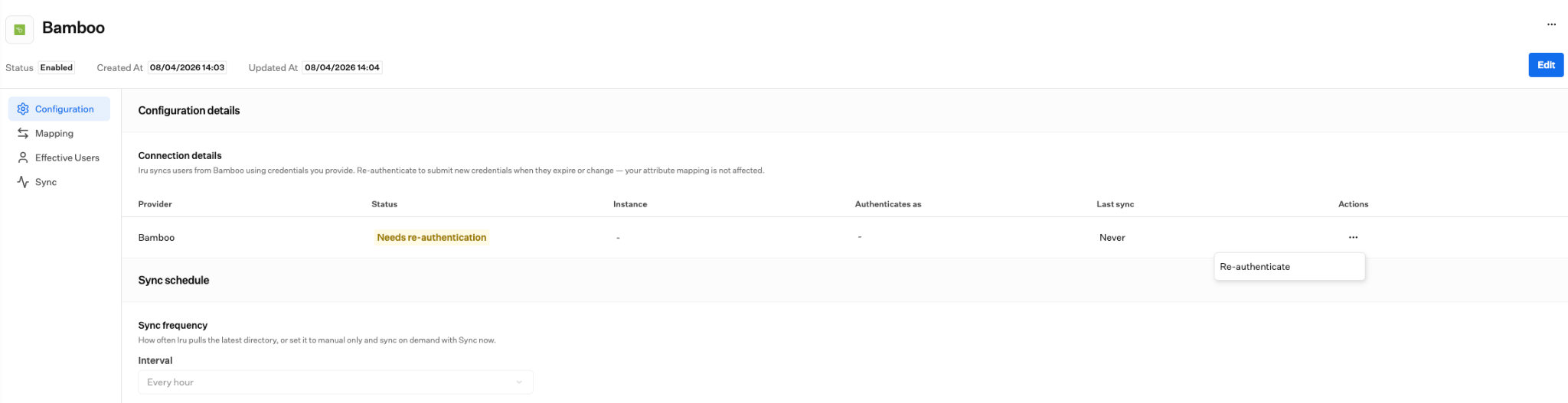
off the first import and keeps Iru in sync.On the detail page you can later re-authenticate, edit your mappings, set
how often Iru syncs, run Sync now, and review activity, effective users, and
sync errors.
When credentials expire or change, use Re-authenticate from Connection details.
Coming from Workday? BambooHR is a little simpler: Workday has an extra step
where you point Iru at a custom report, while BambooHR reads its standard employee
directory, so you go straight from connecting to mapping. Everything else (the
unique identifier, required fields, and IQL) works the same way.