This guide applies to Mac computers
About Okta Desktop Password Sync
Okta Desktop Password Sync for macOS syncs the local macOS account password with the user’s Okta password.How It Works
Desktop Password Sync for macOS allows users to synchronize their local macOS account password with their Okta password. This integration ensures that when users change their Okta password, their local macOS password automatically updates to match, eliminating the need to manually update passwords across systems.Prerequisites
- Before registering Okta Verify and setting up Desktop Password Sync, ensure Touch ID has been set up on your computer.
Initial Registration
1
Start Registration
A notification will be presented showing Registration Required. Click Register.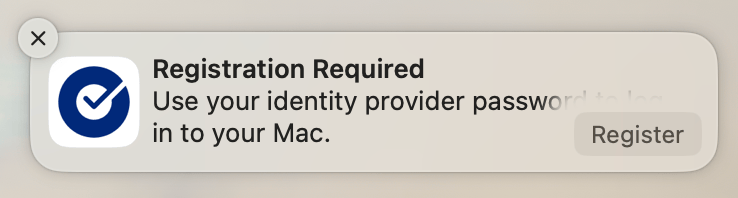
2
Enter Current Password
Enter your current computer password when prompted.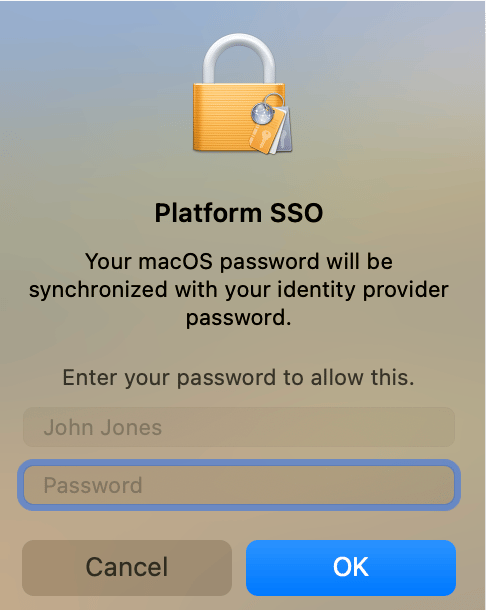
3
Set Up Okta Verify
Start the Okta Verify setup process by clicking Set up in the popup window.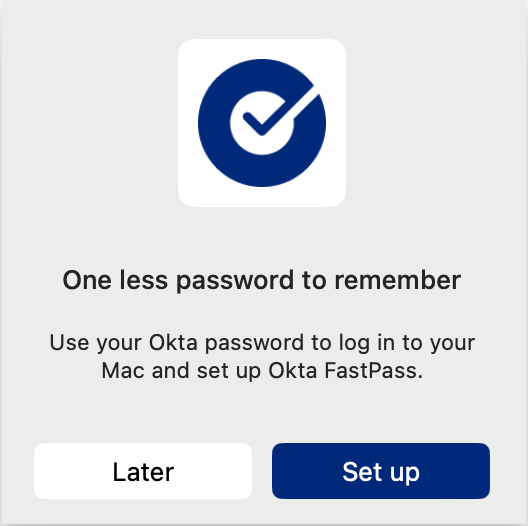
4
Continue in Browser
You will continue the process in your web browser.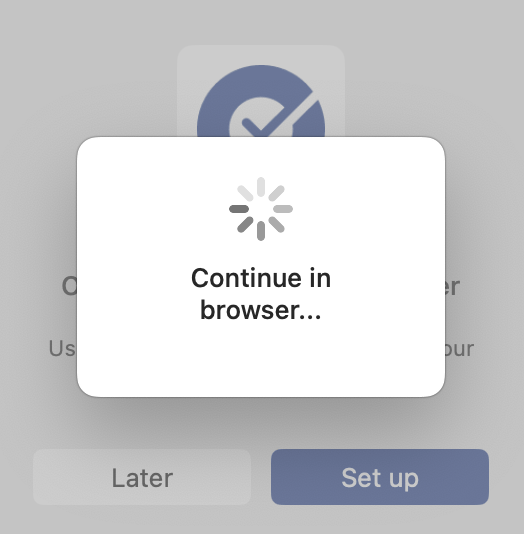
5
Log Into Okta
Log into your Okta account in your web browser.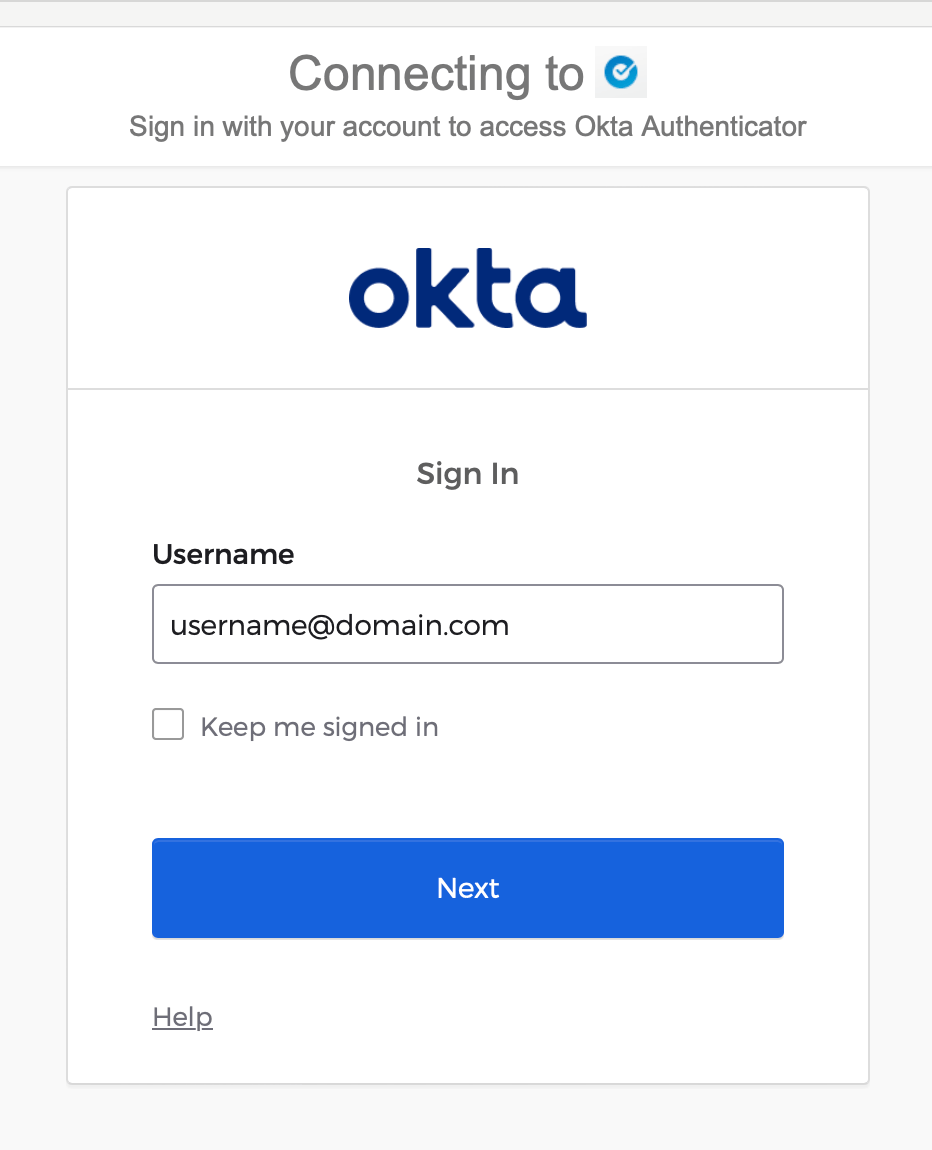
6
Enable Touch ID
Once your identity is verified you can close your web browser window. You will be prompted to enable Touch ID.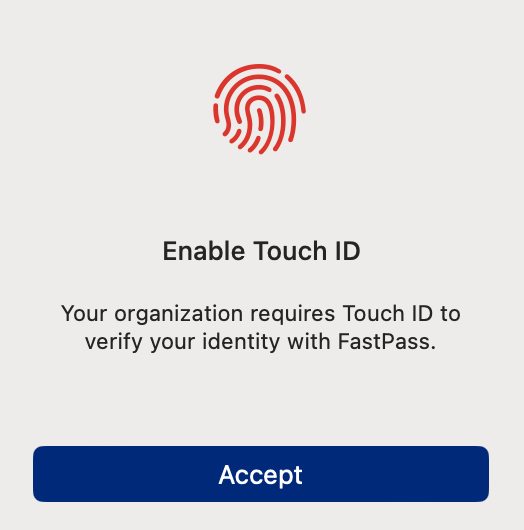
7
Authenticate for Sync
Next, you will be prompted to authenticate to sync your Okta password to your local account. Click Continue.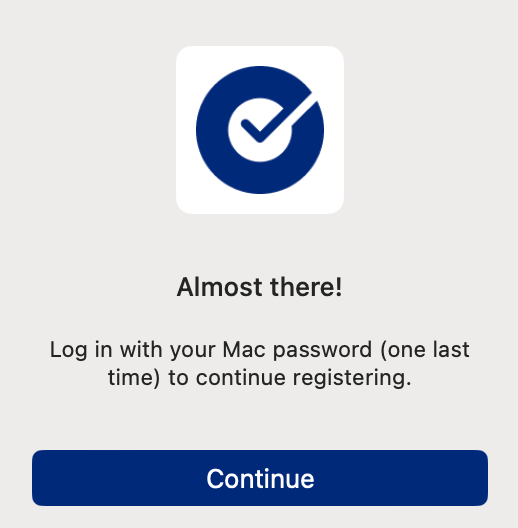
8
Sign In to Sync
Click Sign In on the notification that appears.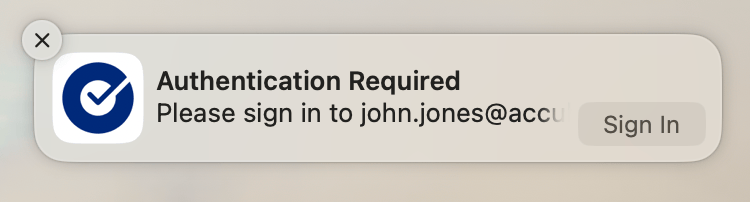
9
Enter Okta Password
Enter your Okta password and click Sign in.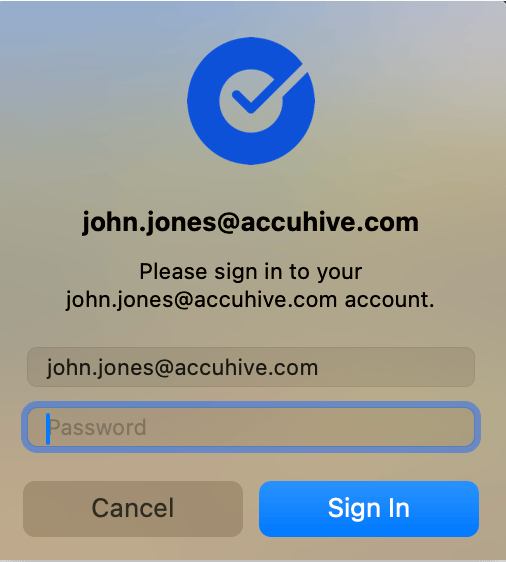
10
Confirm Synchronization
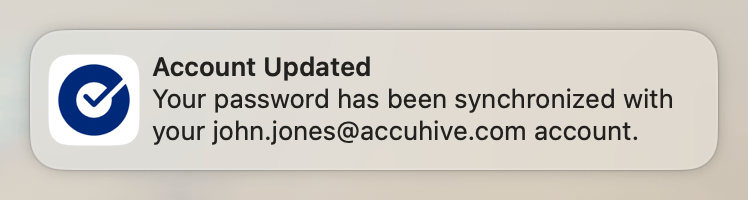
You will see a notification letting you know your password has been synchronized.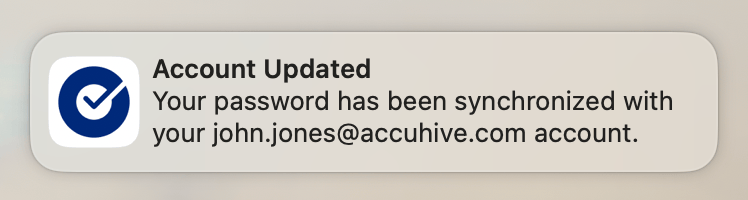
Password Changes
In Users & Groups settings, in the Password field, the Change button is not available. This is to help keep your Mac password in sync with your Okta password. If your Okta password changes, there are a few ways to change your Mac password to match your Okta password.Until you update your password, you will continue to use your old password to log in to your Mac.
Okta Verify Notification
1
Authentication Required
When you see the Authentication Required notification, click Sign In.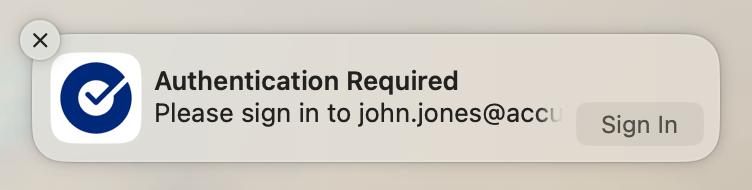
2
Enter New Password
Enter your new Okta password and click Sign In.
3
Confirm Update
You will see a notification that your password has been updated.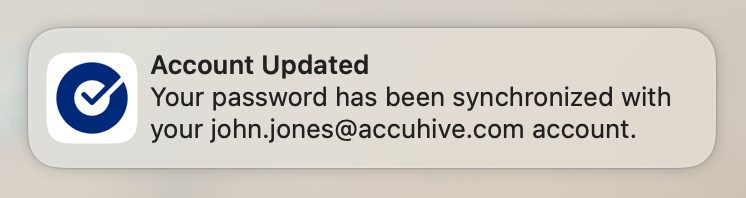
Lock Screen
You can use your new Okta password at the macOS Lock Screen (not the FileVault unlock screen or Login Window) which will automatically update the local account password on successful authentication.System Settings (macOS 14+ Only)
1
Open System Settings
After your password is changed in Okta, open System Settings and select Users & Groups.
2
Access User Details
Click the info icon next to your user name.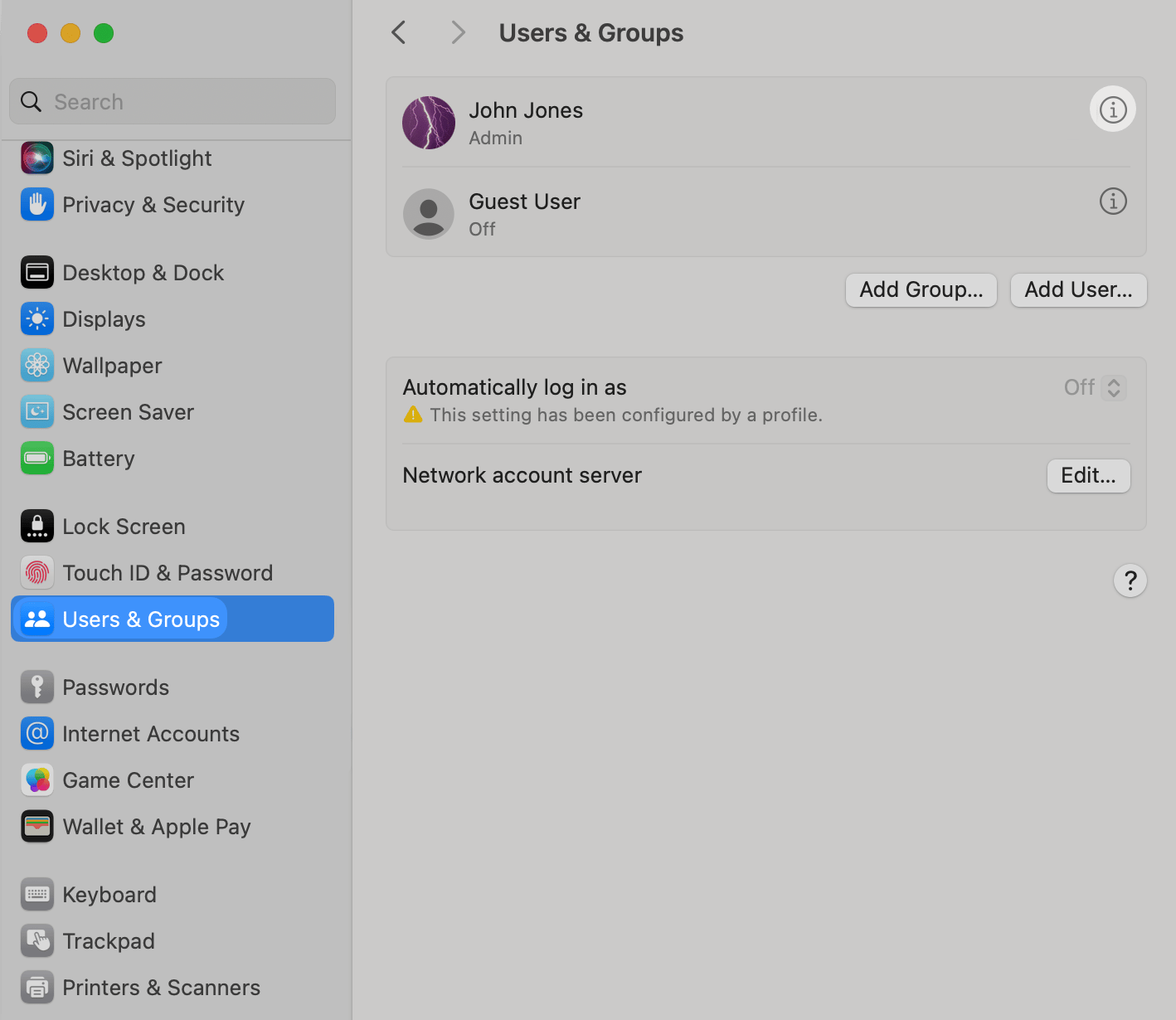
3
Authenticate Platform SSO
In the Platform Single Sign-on section, click Authenticate.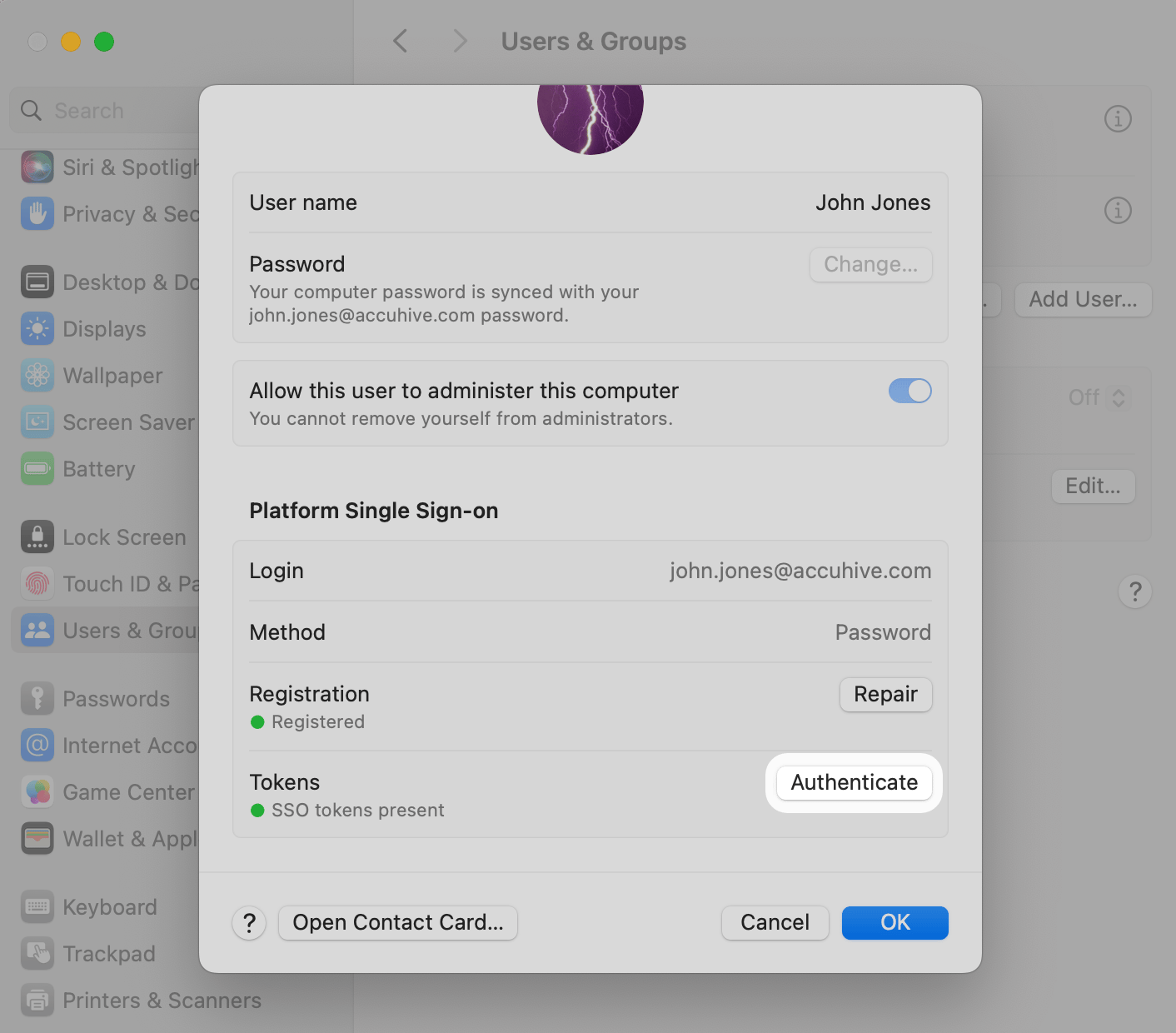
4
Enter New Password
Enter your new Okta password when prompted.
5
Confirm Synchronization
You will see a notification that your password has been synchronized.