

This guide applies to Apple devices
Apple Business Manager is now Apple Business. Apple School Manager is unchanged. For more information, see Introducing Apple Business and Apple Business Manager is now Apple Business.
What is Activation Lock?
Activation Lock is a security feature developed by Apple to help prevent unauthorized use of Apple devices if they are lost or stolen. This feature is part of the “Find My” service and is designed to deter theft by making it difficult for anyone other than the owner to use or sell the device.How Activation Lock Works
Activation Lock is automatically enabled when a user sets up the “Find My” feature on their device. Here’s how it functions:1
Apple Account storage
When “Find My” is turned on, the user’s Apple Account is securely stored on Apple’s activation servers and linked to their device.
2
Device activation check
Each time the device is activated or recovered, it contacts Apple to check if Activation Lock is enabled.
3
Password requirement
To turn off “Find My,” erase the device, or reactivate it, the user must supply the Apple Account password.
User-based Activation Lock
User-based Activation Lock is activated when a device user signs in with their personal Apple Account and enables Find My Device. This feature is also known as iCloud Activation Lock.How to Prevent User-based Activation Lock
By default, user-based Activation Lock is not allowed on supervised devices. When iOS, iPadOS, visionOS or macOS devices are enrolled into Iru Endpoint via Automated Device Enrollment, the Activation Lock Allowed While Supervised MDM option is set to false. However, you can modify the Automated Device Enrollment configuration before enrolling the device if you wish to allow user-based Activation Lock.Although Activation Lock is tied to “Find My”, preventing Activation Lock will not prevent users from logging into “Find My”.
Special Considerations for Mac Computers
For Mac computers that are already set up and enrolled in Iru Endpoint, there are a few things to consider:- Pre-enrollment Activation Lock: If a user enabled user-based Activation Lock before enrollment, it will remain enabled.
- Bypass Code Generation: If the Mac was not previously supervised by an MDM, Iru Endpoint will generate and retrieve a bypass code. However, this code cannot retroactively disable an existing user-based Activation Lock. For the bypass code to be effective, the user must turn off Find My Mac and then turn it back on.
- Migration from Another MDM: If a Mac is migrating from one MDM to Iru Endpoint, the existing Activation Lock bypass code may have expired, and Iru Endpoint will not be able to retrieve it. Bypass codes can only be retrieved within 30 days after the device is supervised. Therefore, it is recommended to retrieve these codes from the previous MDM before migration.
User-based Activation Lock Bypass Code
If you allow user-based Activation Lock and need to clear it (for example, when reassigning a device), first retrieve the bypass code from the device record in Iru Endpoint. Then enter that code on the device. The place you enter it depends on the platform: Setup Assistant on iPhone, iPad, and Apple Vision Pro; Finder on iPhone and iPad; or macOS Recovery on Mac. Bypass codes are available for supervised iOS, iPadOS, visionOS, and macOS devices (Mac computers with T2 or Apple silicon). Activation Lock status fields also appear on the device record Details tab. See Device Record Details. Viewing bypass codes requires a role that can read Activation Lock secrets (for example, Secrets Auditor). See Team Member Role Permissions.Retrieve the bypass code
1
Open the device record
Navigate to Devices in the Iru Endpoint web app and select the supervised device.
2
Open the Device Action Menu
Click the Device Action Menu at the top right of the device record.
3
View the bypass code
Select the option to view the Activation Lock bypass code, then copy the user-based bypass code. Keep this code available before you erase or restore the device.
Setup Assistant
On iPhone, iPad, or Apple Vision Pro, when the Activation Lock screen appears during Setup Assistant (for example, after an erase), leave the Apple Account field blank and enter the user-based bypass code in the password field.Finder
On iPhone or iPad, connect the device to a Mac with a cable. In Finder, when you are prompted for Activation Lock credentials, leave the Apple Account field blank and enter the user-based bypass code in the password field.macOS Recovery
On a Mac at the Activation Lock screen, open Recovery Assistant in the menu bar and select Activate with MDM Key…. Enter the user-based bypass code when prompted.Device-based Activation Lock
Device-based Activation Lock is enabled by an MDM solution submitting an API request to Apple’s Device Assignment Service API. This feature is sometimes referred to as MDM or organization-based Activation Lock and is currently supported only on iOS, iPadOS, and visionOS devices.How to Enable Device-based Activation Lock
To enable device-based Activation Lock, you need to modify the Automated Device Enrollment configuration before enrolling the device. Ensure you enable this setting separately for the iPhone, iPad and Vision sections within the Automated Device Enrollment configuration.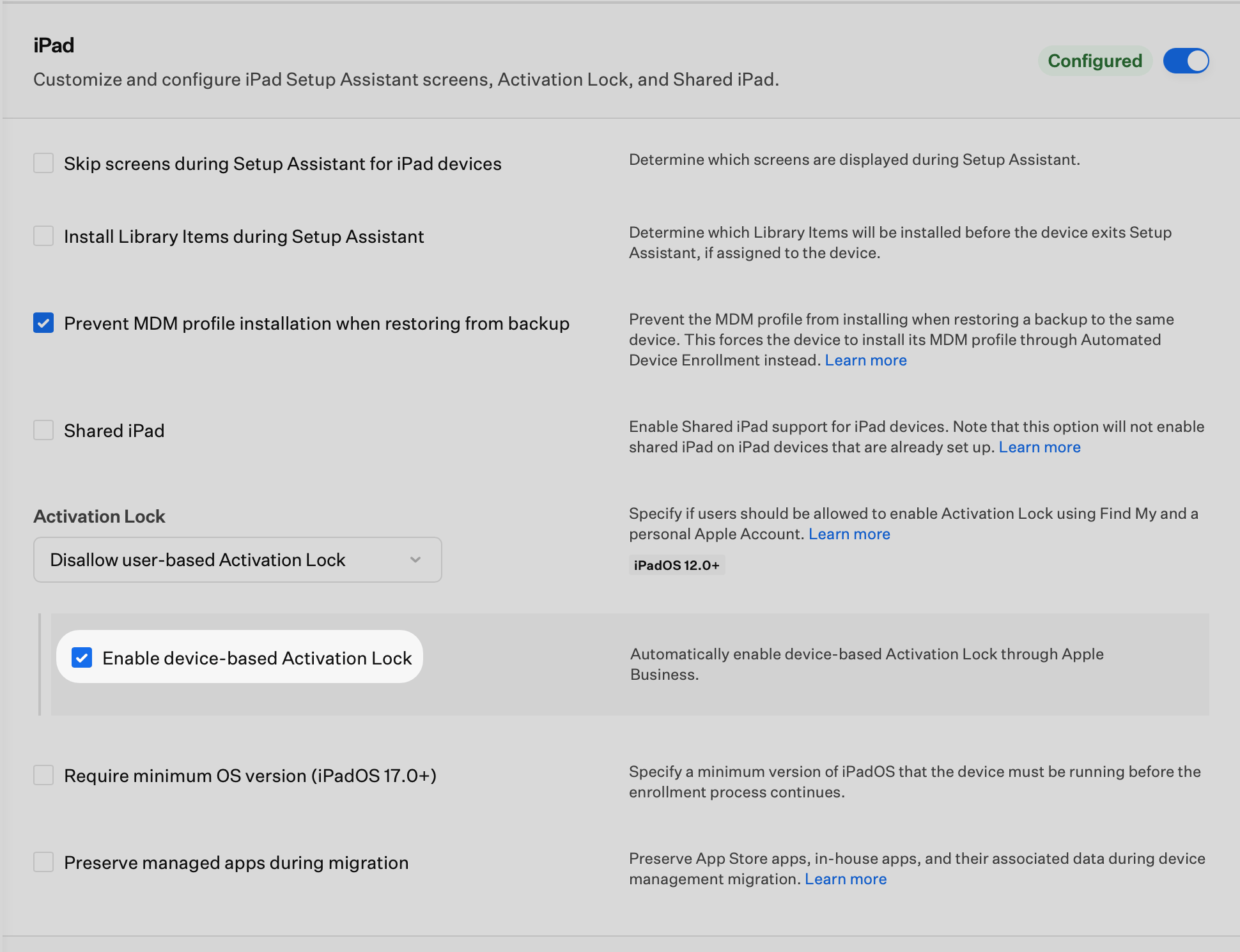
Device-based Activation Lock Bypass Code
If you enable device-based Activation Lock and need to clear it, retrieve the device-based bypass code from the device record using the same Device Action Menu path described in Retrieve the bypass code, then enter that code on the device with the Setup Assistant or Finder methods above. You can also clear Activation Lock by signing in with the Managed Apple Account of the Apple Business or Apple School Manager user who created the Automated Device Enrollment token. To turn Activation Lock off from those portals instead, see Removing Activation Lock using Apple Business or Apple School Manager.Removing Activation Lock using Apple Business or Apple School Manager
In Apple Business or Apple School Manager, you can disable Activation Lock for devices owned by your organization. The device must be listed in the same portal; it does not need to be associated with an MDM server. For step-by-step instructions, see the following Apple Support articles: If the Activation Lock bypass code is unavailable and Activation Lock cannot be removed using Apple Business or Apple School Manager, you can contact AppleCare Enterprise Support for further assistance.Related Articles
Apple Device Supervision
Understand Apple device supervision
Configuring Apple Enrollment
Configure Apple device enrollment with Automated Device Enrollment (ADE)
Configure Automated Device Enrollment
Set up Automated Device Enrollment for zero-touch deployment and lifecycle management of corporate Apple devices