> ## Documentation Index
> Fetch the complete documentation index at: https://iru-kbee-63-enhance-rts-documentation.mintlify.site/llms.txt
> Use this file to discover all available pages before exploring further.
# Prism Data Analytics
> Use Prism in Iru to query and visualize device fleet data. Build custom reports, filter by attributes, and export results for analysis.
Prism is Iru's device data collection and analytics platform. It gathers inventory and configuration data from your fleet and feeds [Iru AI](/en/iru/iru-ai/using-iru-ai), so you can ask questions about your devices and get recommendations based on that data.
## About Prism
Prism stores the device data Iru AI uses to answer questions and surface recommendations. Collection and organization happen in Prism. Iru AI then makes that data available in conversation and through proactive insights.
## Prism Data Categories
Prism organizes device data into these categories:
General information about your enrolled devices.
Device and user Activation Lock status, bypass code escrow, and related settings for iOS, iPadOS, visionOS, and macOS devices.
Built-in macOS application firewall status, including block all incoming, stealth mode, logging, allow signed applications, and firewall unloading. Firewall exceptions are not included here; they will ship later in their own category.
Application inventory for iOS, iPadOS, tvOS, visionOS, and macOS devices, including source, signature, Team ID, and install or download state. On Mac, the Iru Agent also records each app's last-opened date and timestamp.
Cellular details for iOS and iPadOS devices, including dual-SIM Slot 1 and Slot 2 data such as carrier, roaming, personal hotspot, IMEI, ICCID, and EID.
Installed certificates on macOS, iOS, iPadOS, and tvOS devices, reported with common name and whether each is an identity certificate.
Screensaver path and interval, clock display, and hot corners per user account on macOS devices.
FileVault status on macOS devices, including recovery key type, escrow status, regeneration needed, and next scheduled rotation.
Gatekeeper status and mode on macOS, plus Gatekeeper, Opaque, XProtect, and MRT versions. Gatekeeper exceptions will arrive later as a separate category.
All installed profiles on Apple devices, including profiles not installed by Iru Endpoint, with managed, removable, signed, encrypted, and removal passcode attributes.
Installed kernel extensions and their status on macOS devices.
Launch agents and daemons on macOS devices, including load and disabled state, domain, program arguments, and the local user for user agents.
Local users on macOS devices, including Administrator or Standard type, Secure Token, FileVault User, Volume Owner, Mobile Account, and Home Folder Secured.
Core macOS security settings such as System Integrity Protection (SIP), Authenticated Root Volume, Bootstrap Token, and Secure Boot.
Installed system extensions on macOS devices, including state, MDM Managed, Team ID, and version details.
Transparency, Consent, and Control (TCC) entries on macOS devices, including service, application, Allowed or Denied status, and status reason (User Set, System Set, or MDM Policy).
## Using Prism
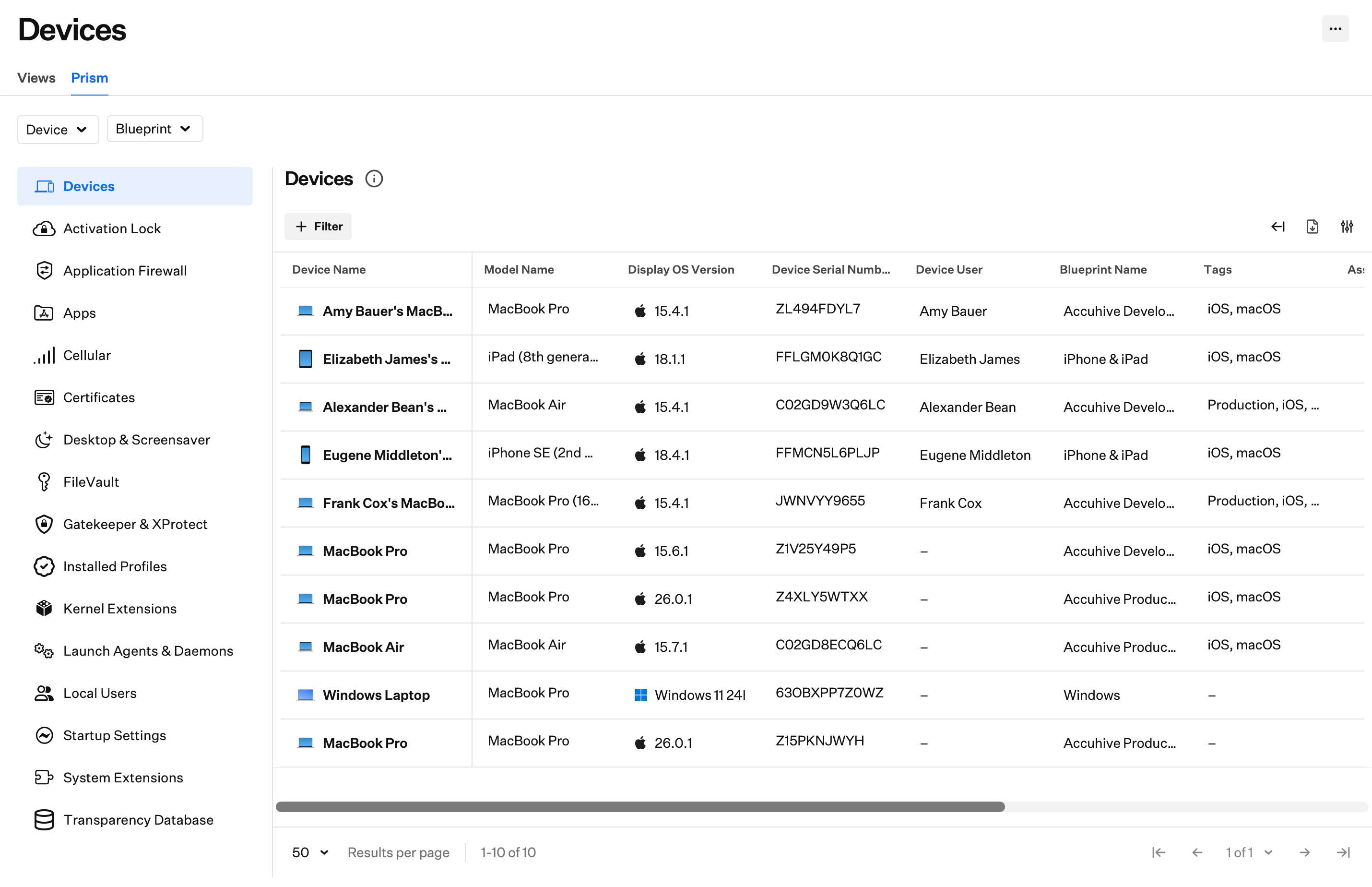
Open **Devices**, then select the **Prism** tab.
 ### Global Filters
Use the **Device** and **Blueprint** filters to narrow Prism results across all categories. Categories that do not apply to the filtered platform may be grayed out. For example, FileVault grays out when you filter to iOS devices.
#### Device
Filter by platform. Options include:
* **Apple**, with nested choices for **Mac**, **iPhone**, **iPad**, **Apple TV**, and **Vision**
* **Windows**
* **Android**
Select one or more platforms, then use **Reset** to clear the Device filter.
#### Blueprint
Filter by Blueprint. Search Blueprints, choose **Select all**, or select individual Blueprints. Use **Clear** to remove Blueprint selections.
### Expand and Collapse Table View
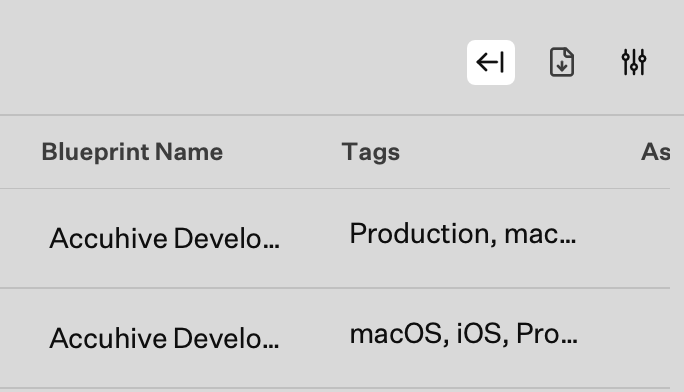
Click **Expand table view** to hide the Prism category sidebar and give the table more room. Click **Collapse table view** to show the sidebar again.
### Global Filters
Use the **Device** and **Blueprint** filters to narrow Prism results across all categories. Categories that do not apply to the filtered platform may be grayed out. For example, FileVault grays out when you filter to iOS devices.
#### Device
Filter by platform. Options include:
* **Apple**, with nested choices for **Mac**, **iPhone**, **iPad**, **Apple TV**, and **Vision**
* **Windows**
* **Android**
Select one or more platforms, then use **Reset** to clear the Device filter.
#### Blueprint
Filter by Blueprint. Search Blueprints, choose **Select all**, or select individual Blueprints. Use **Clear** to remove Blueprint selections.
### Expand and Collapse Table View
Click **Expand table view** to hide the Prism category sidebar and give the table more room. Click **Collapse table view** to show the sidebar again.
 ### Manage Tags
From the Devices page (including Prism), open the ellipsis menu and select **Manage tags** to search for, add, edit, or delete tags for your tenant. For full steps, see [Tags for Devices](/en/endpoint/devices/device-record-management/tags-for-devices#managing-tags).
### View Settings
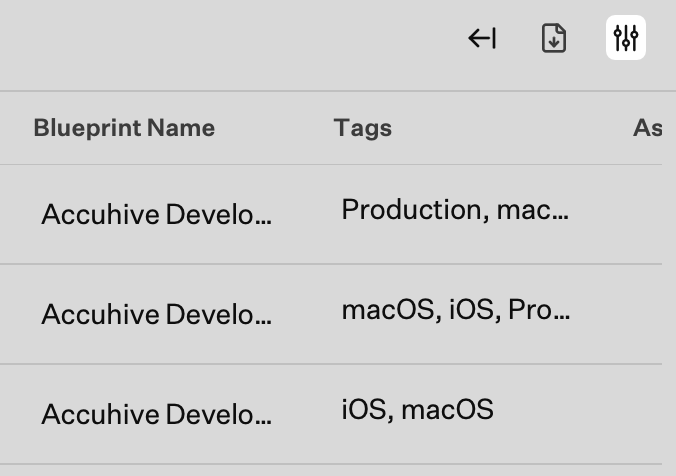
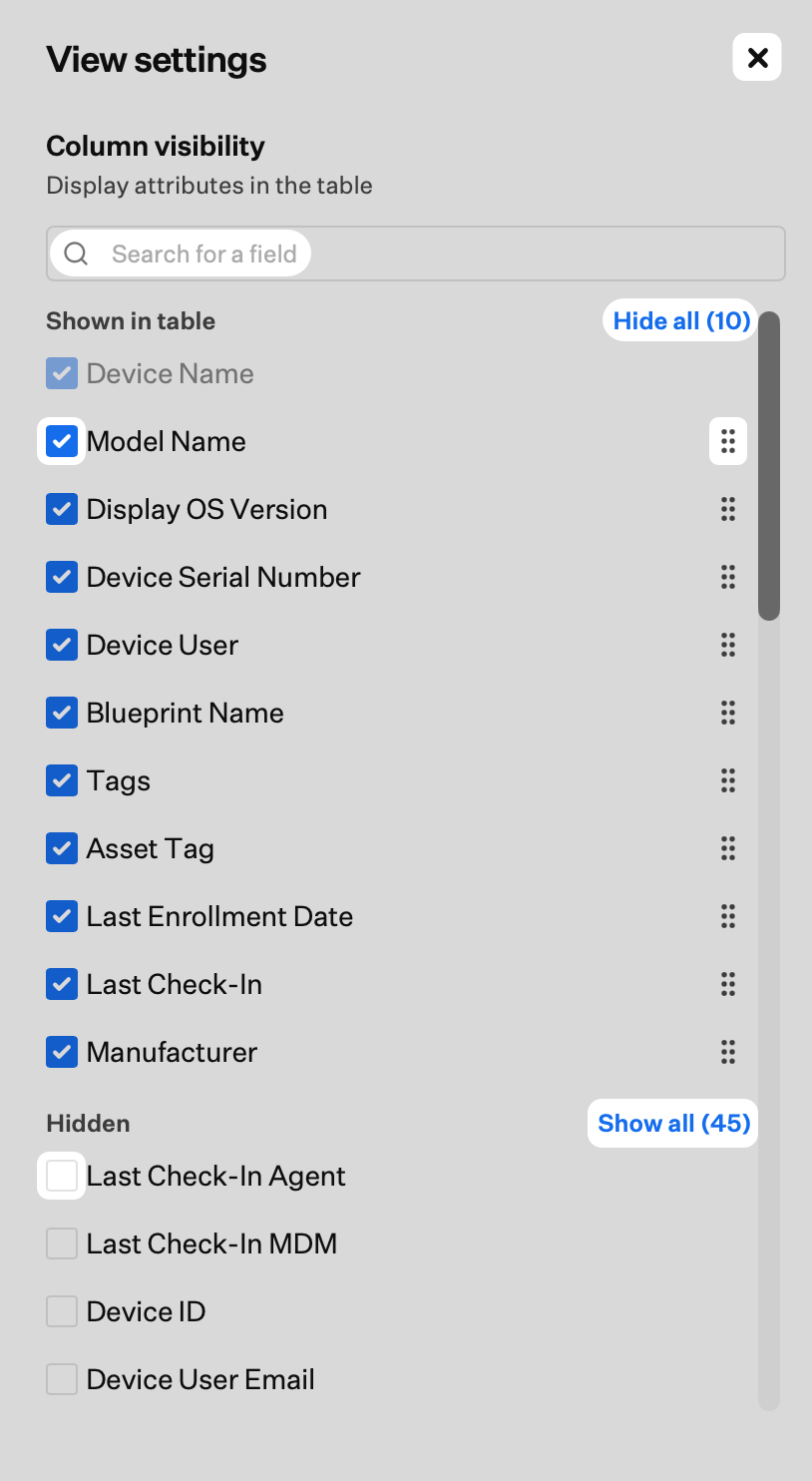
Use **View settings** to choose which attributes appear in the table for the current category.
Click **View settings**.
### Manage Tags
From the Devices page (including Prism), open the ellipsis menu and select **Manage tags** to search for, add, edit, or delete tags for your tenant. For full steps, see [Tags for Devices](/en/endpoint/devices/device-record-management/tags-for-devices#managing-tags).
### View Settings
Use **View settings** to choose which attributes appear in the table for the current category.
Click **View settings**.
 Search for a specific attribute if you have one in mind.
Click **Hide all** to turn off all optional columns.
Uncheck individual columns to hide them from the table.
Click and drag the **drag-and-drop** icon to reorder columns.
Click **Show all** to turn on all columns.
Check items in the hidden list to show them in the table again.
Click **X** to close **View settings**.
Search for a specific attribute if you have one in mind.
Click **Hide all** to turn off all optional columns.
Uncheck individual columns to hide them from the table.
Click and drag the **drag-and-drop** icon to reorder columns.
Click **Show all** to turn on all columns.
Check items in the hidden list to show them in the table again.
Click **X** to close **View settings**.
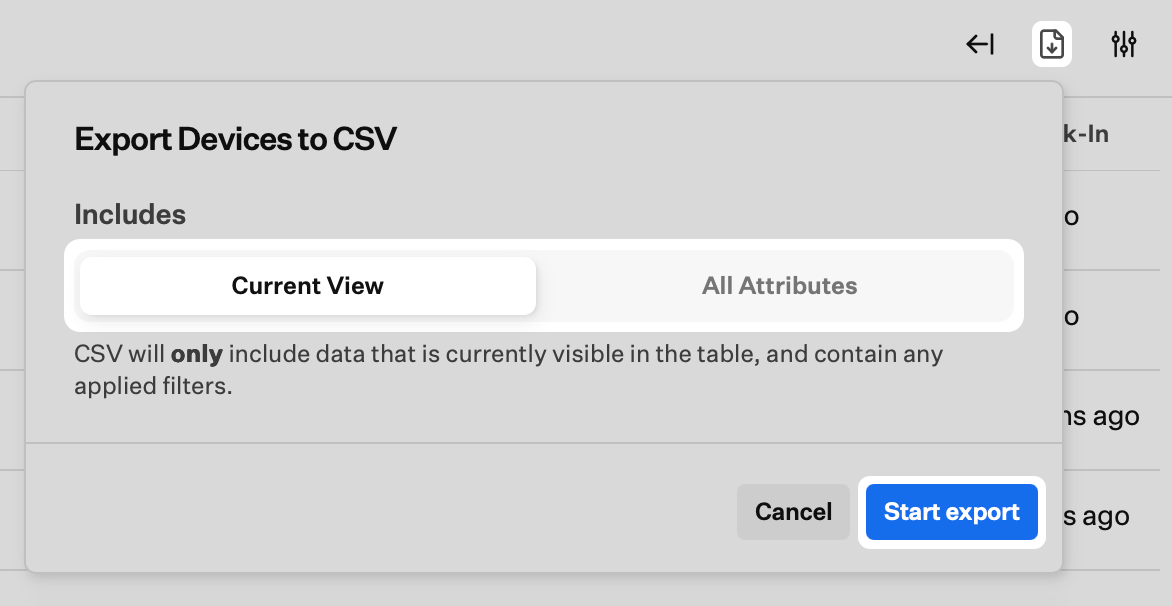
 ### CSV Export
Export the contents of the category you are viewing.
Click **Export CSV**.
Select **Current View** or **All Attributes**:
* **Current View**: Includes only the data currently visible in the table, plus any applied filters.
* **All Attributes**: Includes all data for this category, even columns that are not visible in the table.
Click **Start export**.
### CSV Export
Export the contents of the category you are viewing.
Click **Export CSV**.
Select **Current View** or **All Attributes**:
* **Current View**: Includes only the data currently visible in the table, plus any applied filters.
* **All Attributes**: Includes all data for this category, even columns that are not visible in the table.
Click **Start export**.
 ### Add Filters
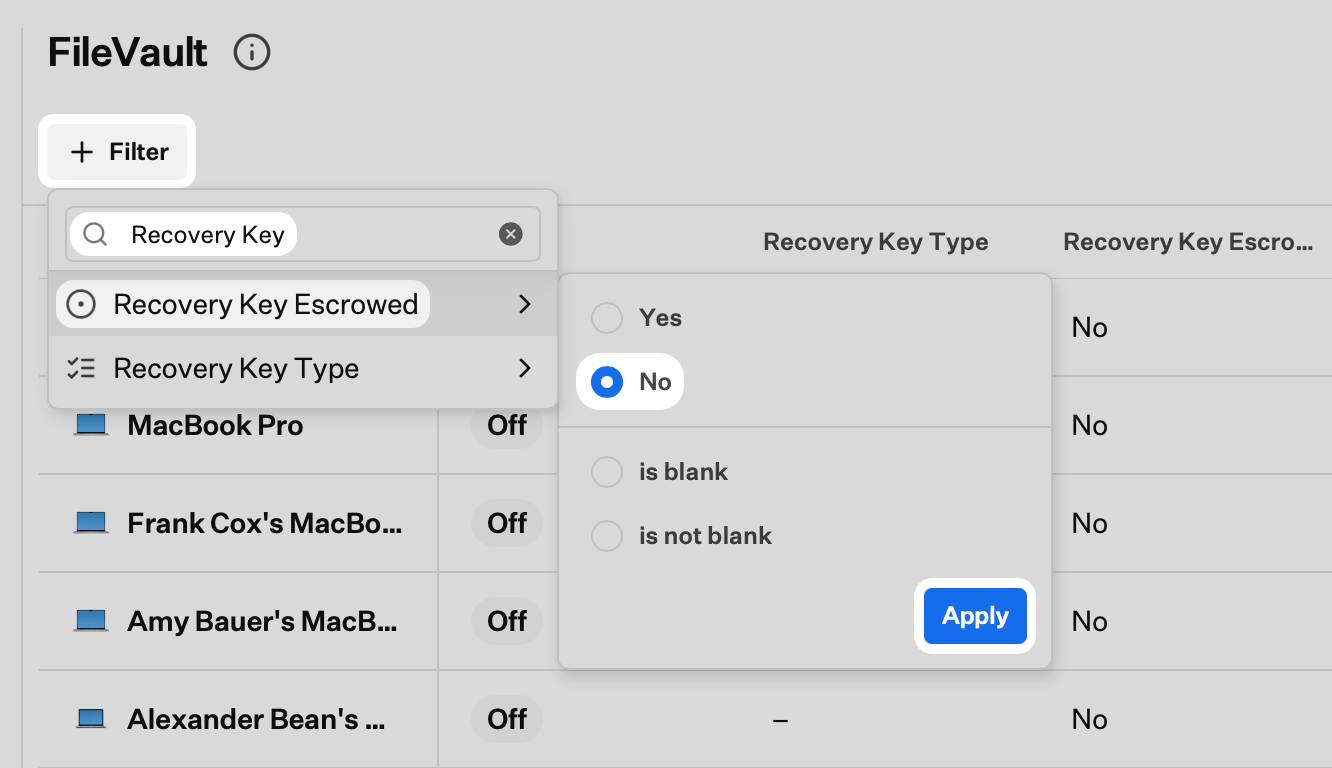
Use **+ Filter** to narrow the table by any attribute in the category. For example, in FileVault you can show devices where the recovery key is not escrowed.
Click **+ Filter**.
Search for the attribute you want to filter on.
Select the filter from the list.
Choose the status or value for the filter.
Click **Apply**.
### Add Filters
Use **+ Filter** to narrow the table by any attribute in the category. For example, in FileVault you can show devices where the recovery key is not escrowed.
Click **+ Filter**.
Search for the attribute you want to filter on.
Select the filter from the list.
Choose the status or value for the filter.
Click **Apply**.
 ### Remove a Filter
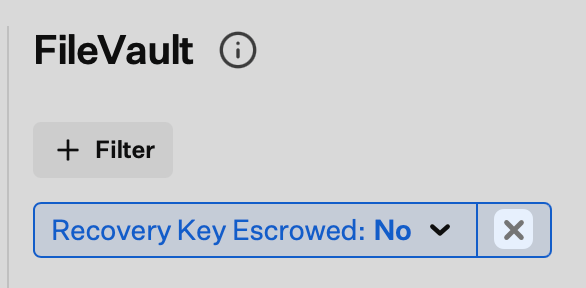
Click the **X** on an applied filter to remove it.
### Remove a Filter
Click the **X** on an applied filter to remove it.
 ### Attribute Values
Prism attributes appear in one of these states:
* **Value**: A returned value such as a boolean (true/false, yes/no, on/off), string, or number
* **Empty**: The attribute applies, but no value is present. For example, a launch daemon with no program arguments
* **Null**: The attribute does not apply to the device platform. For example, application signature on iOS, because Apple does not expose application signing information over the MDM protocol
### Cross-Category Shared Attributes
These attributes appear in every Prism category:
| Attribute | Description |
| ------------------------ | --------------------------------------------------------------------------------------------------------------------------------------------------------- |
| **Device ID** | The unique identifier for the enrolled device |
| **Device Name** | The name of the enrolled device. Links to the device record |
| **Device Family** | The device platform family, such as Mac, iPhone, iPad, or Windows |
| **Device User ID** | The unique identifier for the assigned device user |
| **Device User** | The assigned user of the device record. Links to the user record |
| **Device User Email** | The email address of the assigned device user |
| **Blueprint ID** | The unique identifier for the assigned Blueprint |
| **Blueprint Name** | The assigned Blueprint for the device. Links to the Blueprint record |
| **Tags** | Tags applied to the device |
| **Asset Tag** | The asset tag value on the device record, if set |
| **Device Serial Number** | The device serial number |
| **First Seen** | The first time Prism recorded this row of data |
| **Last Updated** | The last time this row was updated in Prism |
| **Last Collected** | The last time the data was collected |
| **Last Changed** | The last time the data was collected and the values differed from the previous collection. For example, FileVault status was collected and changed to On. |
## Collection Frequency
This table shows how often Prism collects each type of data, and which method it uses.
| **Data** | **Source** | **Collection Frequency** | **Compatibility** |
| ----------------------------------------- | ------------------------------------------- | --------------------------------------------------------------------------------------------------- | ----------------------------------------------------------------------------------------------------------------------------- |
| **Devices** | Agent/MDM | 24 Hours (Apple platforms)
### Attribute Values
Prism attributes appear in one of these states:
* **Value**: A returned value such as a boolean (true/false, yes/no, on/off), string, or number
* **Empty**: The attribute applies, but no value is present. For example, a launch daemon with no program arguments
* **Null**: The attribute does not apply to the device platform. For example, application signature on iOS, because Apple does not expose application signing information over the MDM protocol
### Cross-Category Shared Attributes
These attributes appear in every Prism category:
| Attribute | Description |
| ------------------------ | --------------------------------------------------------------------------------------------------------------------------------------------------------- |
| **Device ID** | The unique identifier for the enrolled device |
| **Device Name** | The name of the enrolled device. Links to the device record |
| **Device Family** | The device platform family, such as Mac, iPhone, iPad, or Windows |
| **Device User ID** | The unique identifier for the assigned device user |
| **Device User** | The assigned user of the device record. Links to the user record |
| **Device User Email** | The email address of the assigned device user |
| **Blueprint ID** | The unique identifier for the assigned Blueprint |
| **Blueprint Name** | The assigned Blueprint for the device. Links to the Blueprint record |
| **Tags** | Tags applied to the device |
| **Asset Tag** | The asset tag value on the device record, if set |
| **Device Serial Number** | The device serial number |
| **First Seen** | The first time Prism recorded this row of data |
| **Last Updated** | The last time this row was updated in Prism |
| **Last Collected** | The last time the data was collected |
| **Last Changed** | The last time the data was collected and the values differed from the previous collection. For example, FileVault status was collected and changed to On. |
## Collection Frequency
This table shows how often Prism collects each type of data, and which method it uses.
| **Data** | **Source** | **Collection Frequency** | **Compatibility** |
| ----------------------------------------- | ------------------------------------------- | --------------------------------------------------------------------------------------------------- | ----------------------------------------------------------------------------------------------------------------------------- |
| **Devices** | Agent/MDM | 24 Hours (Apple platforms)
Daily (Windows)
When something changes on the device (Android) | Apple, Windows, Android |
| **Activation Lock** | MDM | 24 Hours | iOS, iPadOS, visionOS, macOS |
| **Application Firewall** | Agent/MDM | 15 Minutes / 24 Hours | macOS |
| **Apps** | Agent/MDM | 24 Hours (iOS, iPadOS, tvOS, visionOS)
Near-instant (macOS) | iOS, iPadOS, tvOS, visionOS, macOS |
| **App Last Opened** | Agent | Daily (at agent check-in) | macOS |
| **Cellular** | MDM | 24 Hours | iOS, iPadOS |
| **Certificates** | MDM | 24 Hours | macOS, iOS, iPadOS, tvOS |
| **Desktop & Screensaver** | Agent | 15 Minutes | macOS |
| **FileVault** | Agent/MDM | 15 Minutes | macOS |
| **Gatekeeper & XProtect** | Agent | 15 Minutes | macOS |
| **Installed Profiles** | MDM | 24 Hours | iOS, iPadOS, tvOS, visionOS, macOS |
| **Kernel Extensions** | Agent | 15 Minutes | macOS |
| **Launch Agents & Daemons** | Agent | 15 Minutes | macOS |
| **Local Users** | Agent | Hourly | macOS |
| **Startup Settings** | MDM | 24 Hours | macOS |
| **System Extensions** | Agent | 15 Minutes | macOS |
| **Transparency Database** | Agent | 15 Minutes | macOS |
| **Security Patch Level** | MDM | Status report sent upon attribute change | Android |
| **API Level** | MDM | Status report sent upon attribute change | Android |
## Platform-Specific Data Collection
* Device model and specifications
* Serial number and UDID
* Storage capacity and usage
* Battery health and status
* Operating system version and build
* Installed applications and versions
* Mac app last-opened date/timestamp (daily from the agent; macOS updates as apps are used)
* System extensions and kernel extensions
* Launch agents and daemons
* FileVault encryption status
* Gatekeeper and XProtect status
* Activation Lock status
* Installed security profiles
* Local user accounts, including Secure Token, FileVault User, Volume Owner, Mobile Account, Home Folder Secured, and logged-in state
* Desktop and screensaver settings per user account, including screensaver path/interval and hot corners
* Device model and manufacturer
* Serial number and device identifiers
* Storage capacity and usage
* Processor architecture
* Network information
* Operating system name, version, and edition
* OS build and Update Build Revision (UBR)
* Full software version
* Agent installation status and version
* Device model and specifications
* Storage capacity and usage
* Network connectivity status
* Android version and API level
* System updates and patches
* Installed applications in the work profile
* Application versions and sources
* Work profile configuration
* Security patch level
* Device compliance status
* Work profile security settings
* Certificate and encryption status
## Data Collection Methods
The Iru Agent gathers data by:
* **System APIs**: Reading system information and status directly
* **File system monitoring**: Tracking changes to system files and configurations
* **Process monitoring**: Watching running processes and services
* **Event logging**: Collecting system events and security logs
MDM protocols gather data by:
* **Device queries**: Requesting specific device information
* **Status reports**: Receiving automatic status updates
* **Command responses**: Collecting data returned from MDM commands
* **Profile information**: Reading data from installed configuration profiles
## Privacy and Security
Iru protects Prism data with:
* **Encryption**: Data is encrypted in transit and at rest
* **Access controls**: Access controls limit who can view device data
* **Audit logging**: Data access is logged and auditable
* **Data retention**: Retention policies you can configure
Prism data collection aligns with:
* **GDPR**: European data protection regulations
* **CCPA**: California consumer privacy laws
* **SOC 2**: Security and availability standards
* **ISO 27001**: Information security management
## API Access
Prism was built API-first. Anything you can do in the web app is also available through the [Iru API](/en/endpoint/api/iru-api-overview).
With the Prism API, you can:
* Query any category with any subset of filters
* Request a CSV export of any category and retrieve the result set asynchronously
## Best Practices
Check Prism often enough to catch security issues and compliance gaps before they linger.
Use fleet data in Prism when you change device management policies.
Treat FileVault, Gatekeeper, TCC, and related categories as early signals for hardening work.
Use Prism to confirm devices still meet your compliance requirements.
## Troubleshooting
**Possible causes:**
* Device offline or not checking in
* Agent not running
* Network connectivity issues
**Solutions:**
* Confirm the device is online
* Verify the agent is running
* Test network connectivity
**Possible causes:**
* Platform limitations
* Agent version mismatch
* Permission issues
**Solutions:**
* Confirm the category is available for the device platform
* Update the agent to the latest version
* Verify required permissions
**Possible causes:**
* Timing of the last collection cycle
* System state changing during collection
* Agent sync problems
**Solutions:**
* Wait for the next collection cycle
* Force a device check-in
* Restart the agent if needed