> ## Documentation Index
> Fetch the complete documentation index at: https://iru-kbee-63-enhance-rts-documentation.mintlify.site/llms.txt
> Use this file to discover all available pages before exploring further.
# Self Service for iOS, iPadOS, and visionOS
> Configure Self Service for iOS, iPadOS, and visionOS in Iru Endpoint. Let users install approved apps and configurations from the Self Service web clip.
This guide applies to iOS devices, iPadOS devices, and visionOS devices
**Apple Business Manager** is now **Apple Business**. **Apple School Manager** is unchanged. For more information, see [Introducing Apple Business](https://www.apple.com/newsroom/2026/03/introducing-apple-business-a-new-all-in-one-platform-for-businesses-of-all-sizes/) and [Apple Business Manager is now Apple Business](https://support.apple.com/guide/apple-business-manager/apple-business-manager-is-now-apple-business-axmd79d79dea/web).
### About Self Service for iOS, iPadOS, and visionOS
Self Service is an app on iOS, iPadOS, and visionOS that lets users discover and install IT-approved applications.
As of **April 8, 2026**, apps were updated from **Kandji** 
 to **Iru**
  branding. The **Self Service** app name changed from **Kandji Self Service** to **Iru Self Service**. For more information, see [Iru Brand Update](/en/iru/platform-overview/iru-brand-update).
### How It Works
Self Service is distributed through Apple Business or Apple School Manager and automatically installs on managed devices. Users browse available applications, install approved software, and view device information.
### Acquiring Licenses for Self Service from Apple Business or Apple School Manager
Before installing Iru Self Service on iOS, iPadOS, and visionOS devices, acquire licenses for the app. Follow the instructions to [add apps from Apps and Books to Iru Endpoint](/en/endpoint/settings/apple-integrations/add-apps-from-apps-and-books-to-iru-endpoint), and search for "Iru Self Service", or the app ID of 1579981636, in Apple Business or Apple School Manager. Be sure to acquire enough licenses for each iOS, iPadOS, and visionOS device you wish to have Self Service installed on.
### Installing Self Service
Add the **Iru Self Service** Library Item to Blueprints you're using for iOS, iPadOS, and visionOS devices, either from the **Iru Self Service** Library Item in **Library**, or individually on each Blueprint as needed. Self Service will then install automatically on company-owned supervised devices. For devices enrolled through the Iru Endpoint Enrollment Portal, users will need to agree to install Self Service on their devices when prompted.
### Configuring Return to Service in Self Service
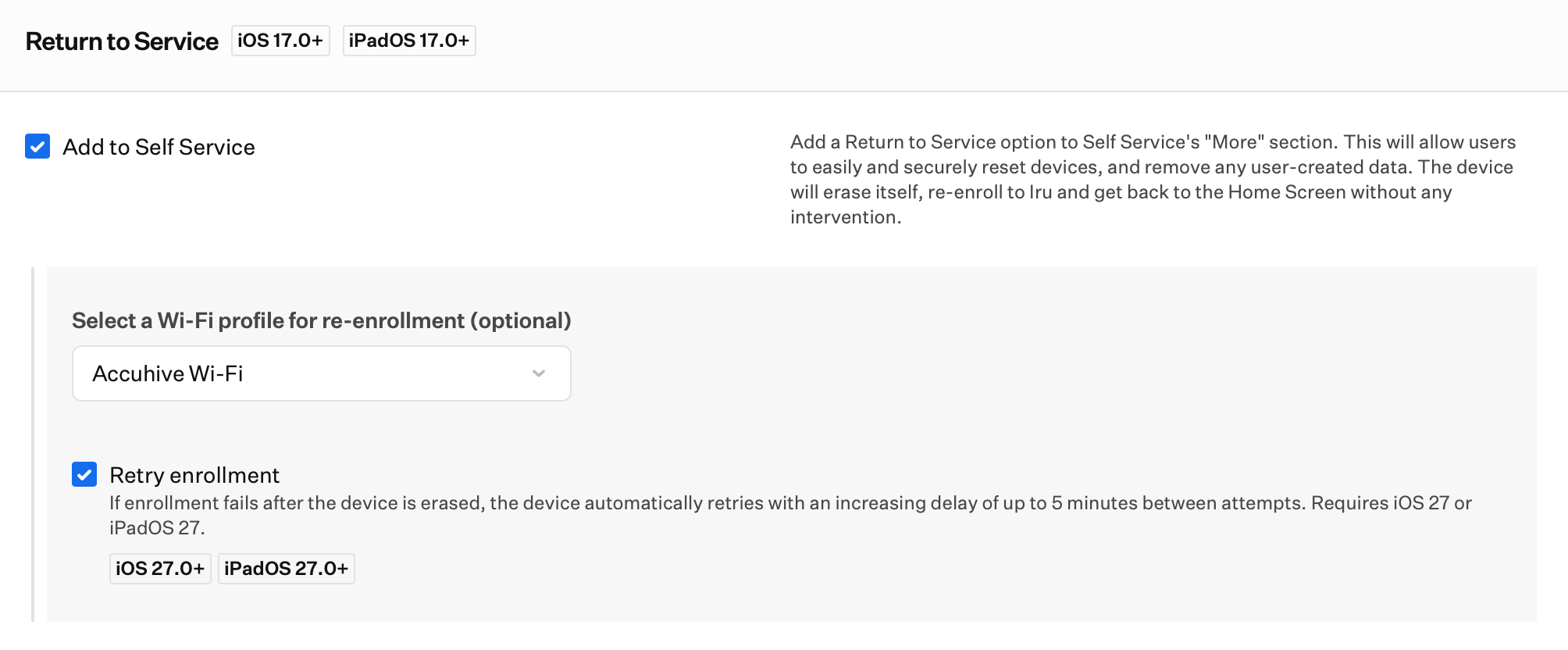
Return to Service is available for devices running iOS and iPadOS 17 or later. After erase, the device advances through Setup Assistant and re-enrolls without user intervention. For more on Return to Service, including **Retry enrollment**, see [Erase an Apple Device](/en/endpoint/devices/device-actions/erase-a-device#return-to-service-ios-ipados-17).
Under Options, check **Add to Self Service**.
Optionally, configure a Wi-Fi profile so the device can join a network after erase.
On iPhone and iPad devices running iOS 27 or iPadOS 27 or later, enable **Retry enrollment** in the Return to Service section of the Iru Self Service Library Item. If enrollment fails after erase, the device retries automatically, with an increasing delay of up to 5 minutes between attempts. Users do not see this option. The Self Service app uses the setting you configure.
branding. The **Self Service** app name changed from **Kandji Self Service** to **Iru Self Service**. For more information, see [Iru Brand Update](/en/iru/platform-overview/iru-brand-update).
### How It Works
Self Service is distributed through Apple Business or Apple School Manager and automatically installs on managed devices. Users browse available applications, install approved software, and view device information.
### Acquiring Licenses for Self Service from Apple Business or Apple School Manager
Before installing Iru Self Service on iOS, iPadOS, and visionOS devices, acquire licenses for the app. Follow the instructions to [add apps from Apps and Books to Iru Endpoint](/en/endpoint/settings/apple-integrations/add-apps-from-apps-and-books-to-iru-endpoint), and search for "Iru Self Service", or the app ID of 1579981636, in Apple Business or Apple School Manager. Be sure to acquire enough licenses for each iOS, iPadOS, and visionOS device you wish to have Self Service installed on.
### Installing Self Service
Add the **Iru Self Service** Library Item to Blueprints you're using for iOS, iPadOS, and visionOS devices, either from the **Iru Self Service** Library Item in **Library**, or individually on each Blueprint as needed. Self Service will then install automatically on company-owned supervised devices. For devices enrolled through the Iru Endpoint Enrollment Portal, users will need to agree to install Self Service on their devices when prompted.
### Configuring Return to Service in Self Service
Return to Service is available for devices running iOS and iPadOS 17 or later. After erase, the device advances through Setup Assistant and re-enrolls without user intervention. For more on Return to Service, including **Retry enrollment**, see [Erase an Apple Device](/en/endpoint/devices/device-actions/erase-a-device#return-to-service-ios-ipados-17).
Under Options, check **Add to Self Service**.
Optionally, configure a Wi-Fi profile so the device can join a network after erase.
On iPhone and iPad devices running iOS 27 or iPadOS 27 or later, enable **Retry enrollment** in the Return to Service section of the Iru Self Service Library Item. If enrollment fails after erase, the device retries automatically, with an increasing delay of up to 5 minutes between attempts. Users do not see this option. The Self Service app uses the setting you configure.
 #### Return to Service in Self Service Considerations
For more on Return to Service, including Activation Lock and Enterprise Wi-Fi, see [Erase an Apple Device](/en/endpoint/devices/device-actions/erase-a-device#return-to-service-ios-ipados-17).
Cellular devices and devices connected via Ethernet do not require the Wi-Fi profile.
Only Wi-Fi profiles scoped to the same Blueprint appear in the drop-down, including Custom Profiles with Wi-Fi payloads. This keeps Wi-Fi payloads from being orphaned on devices.
Profiles that include a SCEP payload are not included.
**Retry enrollment** requires iOS 27 or iPadOS 27 or later on iPhone and iPad. You set it on the Iru Self Service Library Item. Users do not see or change it.
### Opening Self Service
#### iPhone and iPad
Tap the **Iru Self Service** icon on your Home Screen to open the app.
If you don't see the app, swipe down from the top of the screen to reveal the search field and search for Iru Self Service.
The first time you open Self Service, the Analytics and Crash Reports screen appears. Configure the settings as you wish, then tap **Continue**.
#### visionOS
Open **Home View**, select **Apps View** in the tab bar, then look at the app and tap to open it.
If you don't see the app, open **Control Center**, tap the **Search** button, then enter "Iru Self Service" and tap the result to open the app.
The first time you open Self Service, the Analytics and Crash Reports screen appears. Configure the settings as you wish, then tap **Continue**.
### Navigating Self Service
Self Service has several tabs at the bottom of the screen and will automatically open to the **Library** tab, which is the primary screen that users will interact with.
Within the **Library** tab, **All** is always displayed. **Recommended** appears only when at least one assigned item is marked as recommended in Self Service settings. Additional categories display when an app in that category is assigned to the device's Blueprint.
* **All**: Always displayed; includes all items available in Self Service
* **Recommended**: Displayed only when one or more assigned items are marked as recommended
* Admins can add categories in the Iru Endpoint web app in **Library** → **Self Service Settings** tab. A category will display on a device only if an app within that category is added to the Blueprint that the device is in
Access the **Device Info** tab to see useful information about the device, such as serial number, model, and installed OS version.
Use the **Search** tab to search for and install any app available in Self Service.
Navigate to the **More** tab which includes an **About** screen (which displays the version information for the Self Service app itself), **Privacy**, and **Activity**. Open **Activity** to see previously installed app versions and the dates when they were installed.
### Installing Available Applications
Apps available for Self Service installation will display an icon, name, and description.
Tap **Get** to install the application from the Self Service **Library** screen.
After installing an app, the button will change from Get to **Reinstall**.
Tap the app icon for additional information about the app.
### Considerations
* **License Management**: Ensure sufficient licenses are acquired from Apple Business or Apple School Manager for all devices
* **Automatic Installation**: Self Service installs automatically on company-owned supervised devices
* **User Consent**: Users need to agree to install Self Service on devices enrolled through the Iru Endpoint Enrollment Portal
* **Return to Service**: Available for iOS and iPadOS 17+ devices. After erase, the device re-enrolls automatically. On iOS 27 or iPadOS 27 or later, you can enable **Retry enrollment** on the Iru Self Service Library Item.
* **Wi-Fi Configuration**: Configure Wi-Fi profiles for devices that need network access after erase
* **Category Management**: Categories display on devices only if apps within those categories are added to the device's Blueprint
* **Search Functionality**: Users can search for and install any available app through the Search tab
* **Device Information**: Serial number, model, and OS version
* **Activity Tracking**: View previously installed app versions and installation dates
* **Analytics Configuration**: Users can configure analytics and crash report settings on first launch
* **Home Screen Access**: Self Service appears on device Home Screens for easy access
* **App Management**: Users can reinstall apps and view detailed app information
* **Multi-Platform Support**: Works across iOS, iPadOS, and visionOS devices
* **Administrative Control**: You can configure categories and recommended items through the web app
#### Return to Service in Self Service Considerations
For more on Return to Service, including Activation Lock and Enterprise Wi-Fi, see [Erase an Apple Device](/en/endpoint/devices/device-actions/erase-a-device#return-to-service-ios-ipados-17).
Cellular devices and devices connected via Ethernet do not require the Wi-Fi profile.
Only Wi-Fi profiles scoped to the same Blueprint appear in the drop-down, including Custom Profiles with Wi-Fi payloads. This keeps Wi-Fi payloads from being orphaned on devices.
Profiles that include a SCEP payload are not included.
**Retry enrollment** requires iOS 27 or iPadOS 27 or later on iPhone and iPad. You set it on the Iru Self Service Library Item. Users do not see or change it.
### Opening Self Service
#### iPhone and iPad
Tap the **Iru Self Service** icon on your Home Screen to open the app.
If you don't see the app, swipe down from the top of the screen to reveal the search field and search for Iru Self Service.
The first time you open Self Service, the Analytics and Crash Reports screen appears. Configure the settings as you wish, then tap **Continue**.
#### visionOS
Open **Home View**, select **Apps View** in the tab bar, then look at the app and tap to open it.
If you don't see the app, open **Control Center**, tap the **Search** button, then enter "Iru Self Service" and tap the result to open the app.
The first time you open Self Service, the Analytics and Crash Reports screen appears. Configure the settings as you wish, then tap **Continue**.
### Navigating Self Service
Self Service has several tabs at the bottom of the screen and will automatically open to the **Library** tab, which is the primary screen that users will interact with.
Within the **Library** tab, **All** is always displayed. **Recommended** appears only when at least one assigned item is marked as recommended in Self Service settings. Additional categories display when an app in that category is assigned to the device's Blueprint.
* **All**: Always displayed; includes all items available in Self Service
* **Recommended**: Displayed only when one or more assigned items are marked as recommended
* Admins can add categories in the Iru Endpoint web app in **Library** → **Self Service Settings** tab. A category will display on a device only if an app within that category is added to the Blueprint that the device is in
Access the **Device Info** tab to see useful information about the device, such as serial number, model, and installed OS version.
Use the **Search** tab to search for and install any app available in Self Service.
Navigate to the **More** tab which includes an **About** screen (which displays the version information for the Self Service app itself), **Privacy**, and **Activity**. Open **Activity** to see previously installed app versions and the dates when they were installed.
### Installing Available Applications
Apps available for Self Service installation will display an icon, name, and description.
Tap **Get** to install the application from the Self Service **Library** screen.
After installing an app, the button will change from Get to **Reinstall**.
Tap the app icon for additional information about the app.
### Considerations
* **License Management**: Ensure sufficient licenses are acquired from Apple Business or Apple School Manager for all devices
* **Automatic Installation**: Self Service installs automatically on company-owned supervised devices
* **User Consent**: Users need to agree to install Self Service on devices enrolled through the Iru Endpoint Enrollment Portal
* **Return to Service**: Available for iOS and iPadOS 17+ devices. After erase, the device re-enrolls automatically. On iOS 27 or iPadOS 27 or later, you can enable **Retry enrollment** on the Iru Self Service Library Item.
* **Wi-Fi Configuration**: Configure Wi-Fi profiles for devices that need network access after erase
* **Category Management**: Categories display on devices only if apps within those categories are added to the device's Blueprint
* **Search Functionality**: Users can search for and install any available app through the Search tab
* **Device Information**: Serial number, model, and OS version
* **Activity Tracking**: View previously installed app versions and installation dates
* **Analytics Configuration**: Users can configure analytics and crash report settings on first launch
* **Home Screen Access**: Self Service appears on device Home Screens for easy access
* **App Management**: Users can reinstall apps and view detailed app information
* **Multi-Platform Support**: Works across iOS, iPadOS, and visionOS devices
* **Administrative Control**: You can configure categories and recommended items through the web app