> ## Documentation Index
> Fetch the complete documentation index at: https://iru-kbee-63-enhance-rts-documentation.mintlify.site/llms.txt
> Use this file to discover all available pages before exploring further.
# User Experience with Windows Apps
> What to expect when Auto Apps and Windows Custom Apps install or update on Windows: the Iru system tray Updates list, close-app prompts, background retries, and enforcement countdowns.
This guide applies to Windows devices
When **Iru Agent** installs or updates a company **Auto App** or **Windows Custom App** on your PC, most of the work runs in the background. The **Iru system tray app** next to the clock is where you see pending updates, start installs on your schedule, and respond when a running app blocks an update you chose to run.
### App updates in the Iru system tray
When updates have not finished installing, those apps appear in the **Updates** section of the Iru system tray app. The list includes only apps with outstanding updates. Apps that already updated successfully do not appear.
Each row shows:
* App name and the version available
* Time remaining before the update is enforced automatically (**Auto-install in N days**)
* An **Update** button to start that install
* Status indicators as the install progresses
When nothing is pending, the tray shows a green checkmark and **No app updates are required at this time.**
#### Update one app
Click **Update** next to an app to start that install. If the app is open, you see the [close-app dialog](#when-an-app-must-close) and can close the app to proceed or **Cancel** to return to the list. **Cancel** does not remove the app from the tray; it stays listed until the update completes.
Only one install runs at a time. If you click **Update** on several apps, they queue in the order you clicked and install one after another.
#### Update all apps
Click **Update All** to queue every pending update and install them one at a time from the top of the list (alphabetical order). The button is disabled when every pending app is already queued.
If more than one queued app is open when its turn arrives, you see the close-app dialog for each app that is still running.
#### Background updates and tray reminders
**Iru Agent** also tries to install pending updates silently about every **15 minutes**. If the app is not open, the update installs without a prompt. If the app is open during a background attempt, no dialog appears. The agent retries on the next cycle.
The close-app dialog appears only when you click **Update** or **Update All** in the tray, not during those automatic background attempts.
While updates are still pending, the tray opens on its own about every **8 hours** to show the update list. In that automatic view you see pending updates only. The **Self Service** entry appears when you open the tray yourself.
If **Iru Agent** installs an update silently while the tray is closed, that app no longer appears the next time you open the tray.
**Iru Agent** runs one app installer at a time, whether you start the install from the tray or it runs in the background. That prevents installer conflicts.
### When an app must close
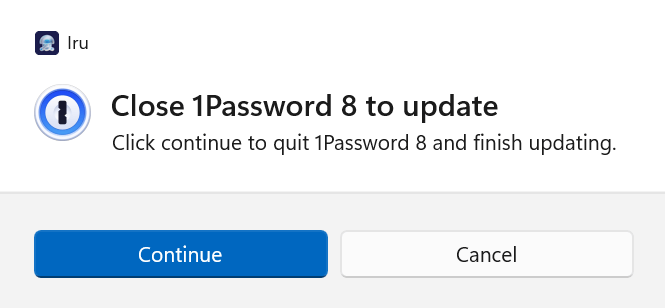
If a running app blocks an install or update **you started from the tray**, a prompt appears in the center of your screen. The Iru system tray app stays open next to the clock. The prompt names the app, explains why it has to close, and offers:
* **Continue:** The listed app closes right away and the install or update completes.
* **Cancel:** Stops this install attempt and returns you to the tray list. **Iru Agent** retries silently about every **15 minutes** in the background. The app remains in the **Updates** list until the update succeeds.
Save your work before you choose **Continue**, so you don't lose anything unsaved.
#### What the prompt looks like
The card header on the left starts with the Iru logomark 
 **Iru**. Under that you'll see the app icon, a short line about which app must close before things can continue, and **Continue** and **Cancel** along the bottom, the same choices described above.
 ### Enforcement deadline
Your IT team can set an **enforcement deadline**: the date and time by which the app must be installed or updated. The tray shows how many days remain before each app auto-installs (**Auto-install in N days**).
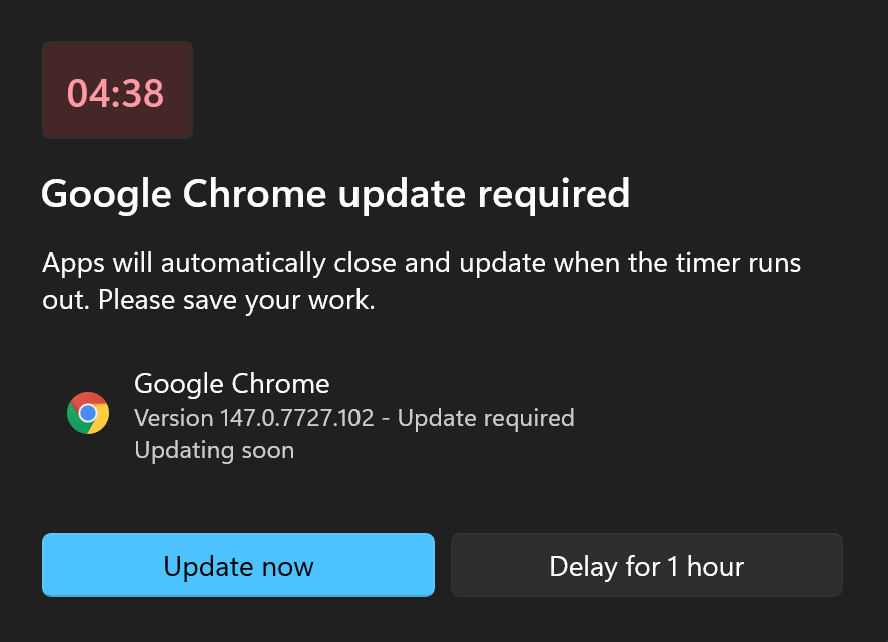
When the enforcement deadline arrives, the [enforcement countdown](#during-the-countdown) takes over, not the tray close-app dialog you see when you click **Update** while an app is open. At the deadline, **Iru Agent** shows a **5-minute countdown** on your screen.
### Enforcement deadline
Your IT team can set an **enforcement deadline**: the date and time by which the app must be installed or updated. The tray shows how many days remain before each app auto-installs (**Auto-install in N days**).
When the enforcement deadline arrives, the [enforcement countdown](#during-the-countdown) takes over, not the tray close-app dialog you see when you click **Update** while an app is open. At the deadline, **Iru Agent** shows a **5-minute countdown** on your screen.
 #### During the Countdown
You can:
* **Update now:** Close the app immediately and let the install finish.
* **Delay for 1 hour:** Postpone the countdown. **Iru Agent** still retries in the background about every 15 minutes. If the app is still open an hour later, the countdown comes back.
#### Delay Limit
Across those delays you can postpone for up to **24 hours** in total. Once you've used that time, you get one last countdown with no way to delay further.
Pick **Update now** to close the app and finish right away. If the timer runs out with no response, the app closes on its own and the install runs.
### What to Do
* Use the tray **Updates** list to install pending **Auto App** or **Windows Custom App** updates before the enforcement deadline when it fits your schedule.
* Save your work before **Continue**, **Update now**, or the countdown ends.
* If you need more room on the clock, use **Delay for 1 hour**. Just keep the **24-hour** limit in mind. After that, the install goes through whether you answer the prompt or not.
* If something looks wrong or you aren't sure what to do, contact your **IT team**.
### Related Articles
How Auto App installs and updates work on Windows and macOS
How Windows Custom Apps are packaged, enforced, and detected
Admin configuration for Windows Custom App deployments
What to expect when you enroll your Windows device through the enrollment portal
#### During the Countdown
You can:
* **Update now:** Close the app immediately and let the install finish.
* **Delay for 1 hour:** Postpone the countdown. **Iru Agent** still retries in the background about every 15 minutes. If the app is still open an hour later, the countdown comes back.
#### Delay Limit
Across those delays you can postpone for up to **24 hours** in total. Once you've used that time, you get one last countdown with no way to delay further.
Pick **Update now** to close the app and finish right away. If the timer runs out with no response, the app closes on its own and the install runs.
### What to Do
* Use the tray **Updates** list to install pending **Auto App** or **Windows Custom App** updates before the enforcement deadline when it fits your schedule.
* Save your work before **Continue**, **Update now**, or the countdown ends.
* If you need more room on the clock, use **Delay for 1 hour**. Just keep the **24-hour** limit in mind. After that, the install goes through whether you answer the prompt or not.
* If something looks wrong or you aren't sure what to do, contact your **IT team**.
### Related Articles
How Auto App installs and updates work on Windows and macOS
How Windows Custom Apps are packaged, enforced, and detected
Admin configuration for Windows Custom App deployments
What to expect when you enroll your Windows device through the enrollment portal