> ## Documentation Index
> Fetch the complete documentation index at: https://iru-kbee-63-enhance-rts-documentation.mintlify.site/llms.txt
> Use this file to discover all available pages before exploring further.
# Configure Android Apps with Google Play Library Item
> Configure Android apps from managed Google Play in Iru Endpoint. Select apps, set managed configurations, and assign to Blueprints for deployment.
This Library Item is available for Android devices
Deploy Google Play applications to company-owned work profile Android devices using the Google Play apps Library Item. This opens the Google Play iframe, letting you add apps to the Iru Endpoint Library. Once added, Google Play apps can be assigned to an Assignment Map and deployed to managed Android devices.
The Google Play iframe will not load if the Android Enterprise integration is not configured. Ensure you have completed the [Android Setup](/en/endpoint/getting-started/platform-setup/android-setup) before using this Library Item.
### Create & Deploy a Google Play App
Add a Google Play app to the Iru Endpoint Library from the managed Google Play iframe, then open it for configuration. Google Play apps can only be deployed to the **work profile**.
Navigate to the Iru Endpoint Library.
Select **Add Library Item** in the upper-right corner.
Select **Google Play apps** on the left-side navigation bar.
Search Google Play for your application.
Click on the application to load the app details view.
Click **Select** to add the application to the Iru Endpoint Library.
Select **View Library Item** to view application configuration options. You can also select **Continue Adding** to remain in the Google Play iframe and search for additional apps.
Select **Edit** in the lower-right corner to configure the application.
### Configure Google Play app settings
After you select **Edit**, set a label and Blueprint assignment, then configure **Installation**, **Options**, **Permissions**, and **Configurations**. Which settings appear can depend on what the app supports in Google Play. Click **Save** when you finish.
Enter a **Label** to distinguish this Library Item from other instances of the same app. The label is for admins only and is not shown to end users.
Under **Assignment Maps**, click **+ Assign** to assign the Library Item to one or more **Blueprints**. You can use Assignment Maps for conditional logic if needed.
Specify how the Google Play app is installed:
* **Install and continuously enforce**: Force the app install and prevent user removal.
* **Install on-demand from Managed Google Play**: Allow end users to install the app manually from Managed Google Play.
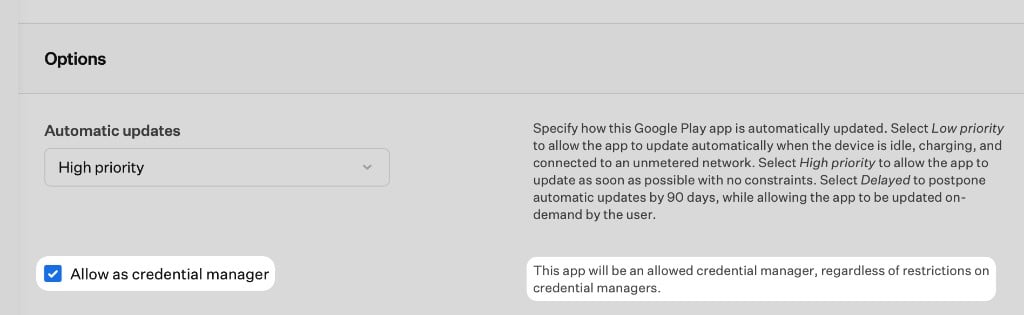
In **Options**, under **Automatic updates**, choose how the app updates:
* **Low priority**: Update automatically when the device is idle, charging, and connected to an unmetered network.
* **High priority**: Update as soon as possible with no constraints.
* **Delayed**: Postpone automatic updates by 90 days. End users can still update the app on demand.
Still in **Options**, select **Allow as credential manager** to allow this app to act as a credential manager (such as a password manager or passkey provider) in the work profile, even when the [Android Restrictions](/en/endpoint/library/library-items-profiles/configure-the-android-restrictions-library-item) Library Item blocks it.
 Set how the app handles runtime permission requests:
* **Set default permission policy**: Choose the default response for permission requests from this app: **Prompt**, **Grant**, or **Deny**.
* **Manage specific permissions**: Set a response for individual permissions. Requires Android API level 24 or higher. Select **+ Add permissions**, choose permissions in the picker (search or **Select all**), then click **Done**. For each permission, choose **Prompt**, **Grant**, or **Deny**.
Available permissions come from Google Play and depend on the app.
If the app supports managed configurations, set them under **Configurations**:
* **Select configurations**: Choose supported configuration keys, then set values for each.
* **Enter JSON configuration**: Paste or edit the raw JSON configuration.
You can use [Global Variables](/en/endpoint/library/library-items-profiles/global-variables) for configuration values. Variables resolve based on the enrolled user or device.
If the app does not support managed configurations, Iru shows that in the **Configurations** section and no keys are available.
Click **Save** to deploy the Library Item to assigned devices.
Set how the app handles runtime permission requests:
* **Set default permission policy**: Choose the default response for permission requests from this app: **Prompt**, **Grant**, or **Deny**.
* **Manage specific permissions**: Set a response for individual permissions. Requires Android API level 24 or higher. Select **+ Add permissions**, choose permissions in the picker (search or **Select all**), then click **Done**. For each permission, choose **Prompt**, **Grant**, or **Deny**.
Available permissions come from Google Play and depend on the app.
If the app supports managed configurations, set them under **Configurations**:
* **Select configurations**: Choose supported configuration keys, then set values for each.
* **Enter JSON configuration**: Paste or edit the raw JSON configuration.
You can use [Global Variables](/en/endpoint/library/library-items-profiles/global-variables) for configuration values. Variables resolve based on the enrolled user or device.
If the app does not support managed configurations, Iru shows that in the **Configurations** section and no keys are available.
Click **Save** to deploy the Library Item to assigned devices.