> ## Documentation Index
> Fetch the complete documentation index at: https://iru-kbee-63-enhance-rts-documentation.mintlify.site/llms.txt
> Use this file to discover all available pages before exploring further.
# Configure the Accessory & Storage Access Library Item
> Configure the Accessory and Storage Access Library Item to control external storage, server volumes, and DMG access on managed Mac computers.
This guide applies to Mac computers
### About Accessory & Storage Access Library Item
Iru Endpoint's Accessory & Storage Access Library Item allows you, as the device or security administrator, to define access privileges and controls for external storage volumes, server volumes, and DMG file types on Mac computers.
To use this Library Item, the [Endpoint Detection & Response](/en/endpoint/endpoint-detection-response-edr/endpoint-detection-and-response-edr-overview) add-on is necessary. However, you do not need to assign the EDR Library Item to the device Blueprint to deploy this Library Item.
### How It Works
The Accessory & Storage Access Library Item provides granular control over storage device access on managed Mac computers. It allows administrators to configure access privileges for external storage devices, disk images, and server volumes, with options for encryption requirements, password protection, and user-specific access controls.
### Adding an Accessory & Storage Access Library Item
To add this Library Item to your Iru Endpoint Library, follow the steps outlined in the [Library Overview](/en/endpoint/library/library-items-profiles/library-overview) article.
Give the new Accessory & Storage Access Library Item a **Name**.
Assign to your desired [Blueprints](/en/endpoint/blueprints/assignment-maps/creating-a-blueprint).
### Configuring External Volumes
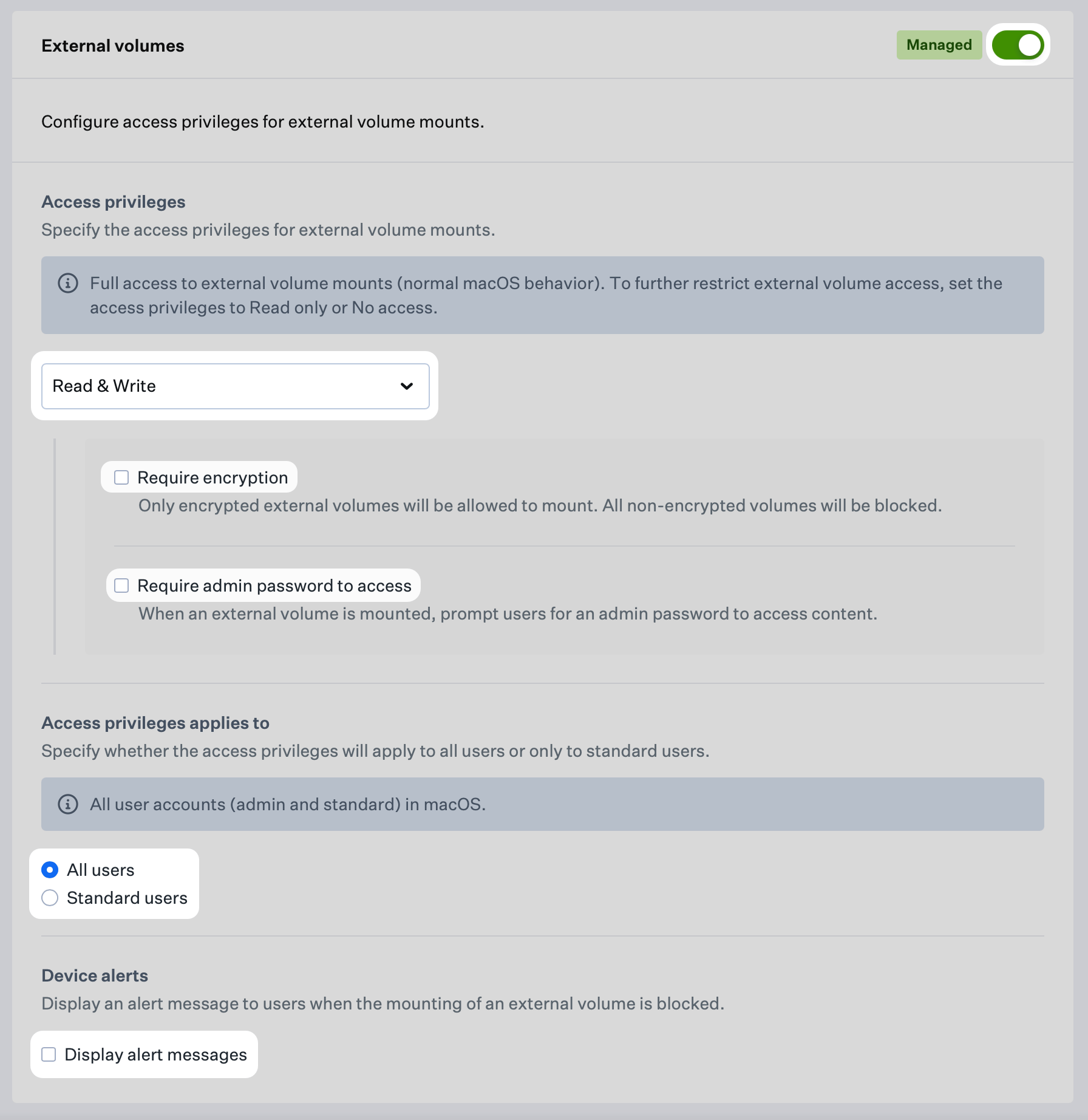
The External volumes section allows you to manage access privileges for external storage devices such as USB, CD, and DVD drives connected to the accessory port and memory cards (SD, SDXC) inserted in the SD card slot. To manage access for external volumes, follow the steps below.
The **Require encryption** and **Require admin password to access** settings are only available for Read & Write and Read only access privileges.
Turn on management for external volumes.
From the Access privileges menu, select the desired access privileges for external volumes. The available options are: **Read & Write**, **Read only**, or **No access**.
a. **Set Encryption Requirements:** Optionally, select **Require encryption** to ensure only encrypted volumes are mounted. For information about using Disk Utility to encrypt storage devices, see [this Apple support article](https://support.apple.com/guide/disk-utility/encrypt-protect-a-storage-device-password-dskutl35612/mac#:~:text=In%20the%20Disk%20Utility%20app,Erase%20button%20in%20the%20toolbar.).
b. **Configure Password Protection:** Optionally, select **Require admin password to access** to prompt users for an admin password to access content.
Select **All users** to apply the access privileges to all users, including admin, or select **Standard users** to apply the access privileges only to standard users.
Optionally, select **Display alert messages** to alert users when the mounting of external volumes is blocked. Note, this setting is forced on when **Require admin password to access** is selected.
 ### Configuring Disk Images
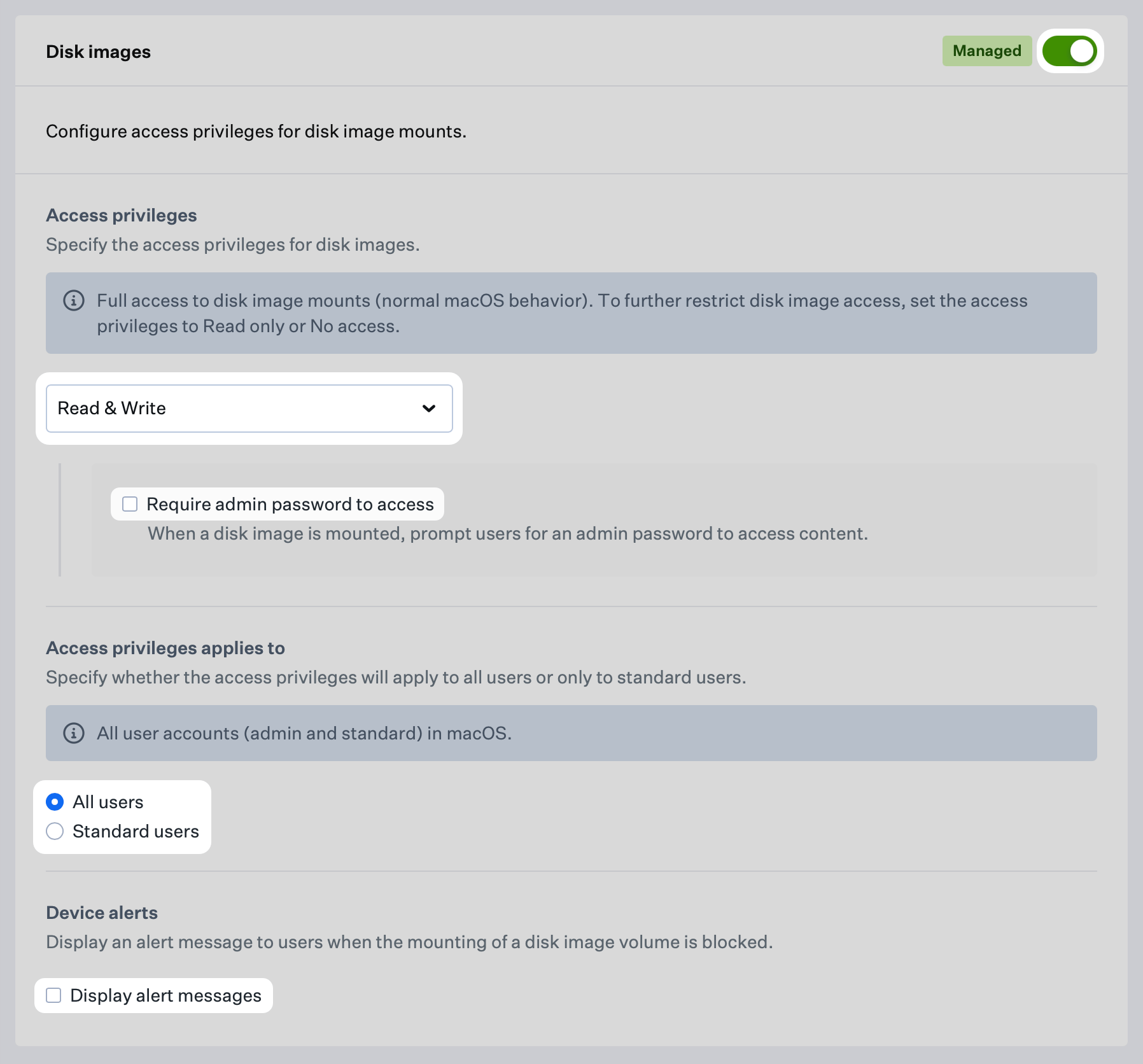
The Disk images section allows you to manage access privileges for DMG file types. To manage access for disk images, follow the steps below. Disk image settings specified here will apply to all DMG mounts on the device, including those in scripted automated workflows and in-app DMG mounts such as Google Chrome's Auto Update Agent.
The **Require admin password to access** setting is only available for Read & Write and Read only access privileges.
Turn on management for disk images.
The Access privileges menu allows you to select the desired access privileges for disk images. The available options are: **Read & Write**, **Read only**, or **No access**.
a. Optionally, select **Require admin password to access** to prompt users for an admin password to access content.
Select **All users** to apply the access privileges to all users, including admin, or select **Standard users** to apply the access privileges only to standard users.
Optionally, select **Display alert messages** to alert users when the mounting of disk images is blocked. Note, this setting is forced on when **Require admin password to access** is selected.
### Configuring Disk Images
The Disk images section allows you to manage access privileges for DMG file types. To manage access for disk images, follow the steps below. Disk image settings specified here will apply to all DMG mounts on the device, including those in scripted automated workflows and in-app DMG mounts such as Google Chrome's Auto Update Agent.
The **Require admin password to access** setting is only available for Read & Write and Read only access privileges.
Turn on management for disk images.
The Access privileges menu allows you to select the desired access privileges for disk images. The available options are: **Read & Write**, **Read only**, or **No access**.
a. Optionally, select **Require admin password to access** to prompt users for an admin password to access content.
Select **All users** to apply the access privileges to all users, including admin, or select **Standard users** to apply the access privileges only to standard users.
Optionally, select **Display alert messages** to alert users when the mounting of disk images is blocked. Note, this setting is forced on when **Require admin password to access** is selected.
 ### Configuring Server Volumes
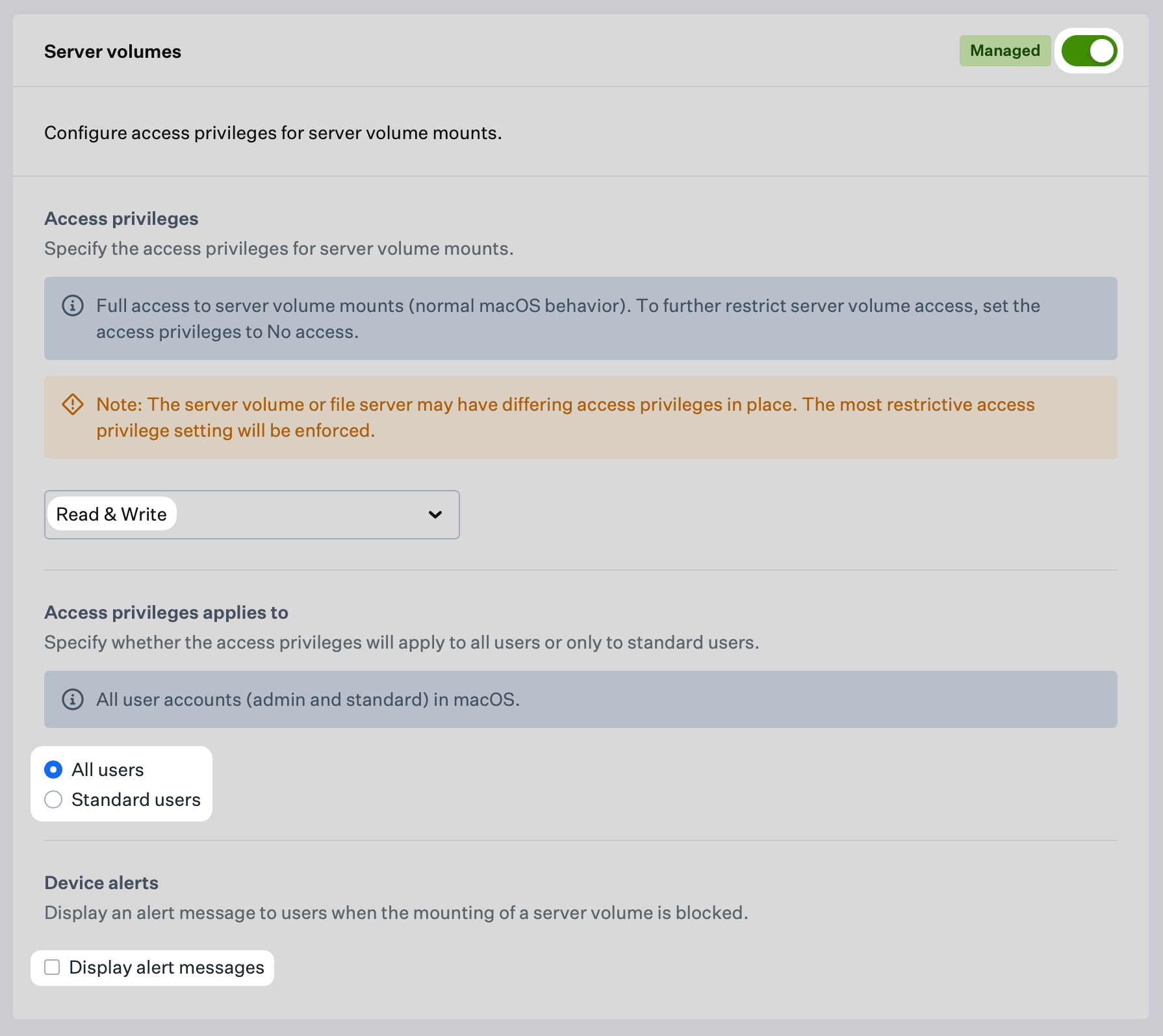
The Server volumes section allows you to manage access privileges for server volume mounts such as SMB shares. To manage access for server volumes, follow the steps below.
Any external, server and DMG volumes previously mounted on the device prior to the deployment of this Library Item will not be managed by Iru Endpoint until these items are unmounted and a re-mount is attempted.
Turn on management for server volumes.
Choose the desired access privileges for disk images from the Access privileges menu. The available options are: **Read & Write** or **No access**.
Select **All users** to apply the access privileges to all users, including admin, or select **Standard users** to apply the access privileges only to standard users.
Optionally, select **Display alert messages** to display alert messages to users when the mounting of external volumes is blocked.
Click the **Save** button to save the Accessory & Storage Library Item to your Library.
### Configuring Server Volumes
The Server volumes section allows you to manage access privileges for server volume mounts such as SMB shares. To manage access for server volumes, follow the steps below.
Any external, server and DMG volumes previously mounted on the device prior to the deployment of this Library Item will not be managed by Iru Endpoint until these items are unmounted and a re-mount is attempted.
Turn on management for server volumes.
Choose the desired access privileges for disk images from the Access privileges menu. The available options are: **Read & Write** or **No access**.
Select **All users** to apply the access privileges to all users, including admin, or select **Standard users** to apply the access privileges only to standard users.
Optionally, select **Display alert messages** to display alert messages to users when the mounting of external volumes is blocked.
Click the **Save** button to save the Accessory & Storage Library Item to your Library.
 ### Understanding Restricted Mode on Apple Silicon
On a Mac with Apple silicon running macOS 13+ and depending on the device's Privacy & Security settings, when new or unknown USB accessories are used, the user may get an alert asking whether or not the USB accessory should be allowed to connect. This is known as [Restricted Mode](https://support.apple.com/guide/deployment/manage-accessory-access-depf8a4cb051/web) on macOS and is independent of Device alert settings in this Library Item. Restricted Mode can be managed with the **Allow USB accessories while device is locked** setting in the Restrictions Library item. See [this Apple support article](https://support.apple.com/en-us/102282) for more details.
### Considerations
The Endpoint Detection & Response add-on is required to use this Library Item. You do not need to assign the EDR Library Item to device Blueprints.
Choose **Read & Write**, **Read only**, or **No access** based on your security requirements. Server volumes support **Read & Write** or **No access** only.
For external volumes, use **Require encryption** and **Require admin password to access** when you need stronger controls. Those options are available only for **Read & Write** and **Read only**.
Apply privileges to **All users** or **Standard users** only, depending on your access control policies.
Use **Display alert messages** so users know when mounting is blocked. This setting is forced on when **Require admin password to access** is selected.
Volumes mounted before this Library Item is deployed are not managed until they are unmounted and remounted.
Restricted Mode on Apple silicon is separate from this Library Item’s alert settings. Manage it with **Allow USB accessories while device is locked** in the Apple Restrictions Library Item.
Disk image settings apply to all DMG mounts, including scripted workflows and in-app mounts such as Google Chrome’s Auto Update Agent.
Test configuration changes in a controlled Blueprint before deploying widely, and review access settings as security policies change.
### Understanding Restricted Mode on Apple Silicon
On a Mac with Apple silicon running macOS 13+ and depending on the device's Privacy & Security settings, when new or unknown USB accessories are used, the user may get an alert asking whether or not the USB accessory should be allowed to connect. This is known as [Restricted Mode](https://support.apple.com/guide/deployment/manage-accessory-access-depf8a4cb051/web) on macOS and is independent of Device alert settings in this Library Item. Restricted Mode can be managed with the **Allow USB accessories while device is locked** setting in the Restrictions Library item. See [this Apple support article](https://support.apple.com/en-us/102282) for more details.
### Considerations
The Endpoint Detection & Response add-on is required to use this Library Item. You do not need to assign the EDR Library Item to device Blueprints.
Choose **Read & Write**, **Read only**, or **No access** based on your security requirements. Server volumes support **Read & Write** or **No access** only.
For external volumes, use **Require encryption** and **Require admin password to access** when you need stronger controls. Those options are available only for **Read & Write** and **Read only**.
Apply privileges to **All users** or **Standard users** only, depending on your access control policies.
Use **Display alert messages** so users know when mounting is blocked. This setting is forced on when **Require admin password to access** is selected.
Volumes mounted before this Library Item is deployed are not managed until they are unmounted and remounted.
Restricted Mode on Apple silicon is separate from this Library Item’s alert settings. Manage it with **Allow USB accessories while device is locked** in the Apple Restrictions Library Item.
Disk image settings apply to all DMG mounts, including scripted workflows and in-app mounts such as Google Chrome’s Auto Update Agent.
Test configuration changes in a controlled Blueprint before deploying widely, and review access settings as security policies change.