> ## Documentation Index
> Fetch the complete documentation index at: https://iru-kbee-63-enhance-rts-documentation.mintlify.site/llms.txt
> Use this file to discover all available pages before exploring further.
# Iru Agent and MDM
> Learn how the Iru Agent works alongside MDM on macOS and Windows. Understand agent capabilities, communication protocols, and management features.
This guide applies to Mac computers and Windows devices
As of **April 8, 2026**, apps were updated from **Kandji** 
 to **Iru**
  branding. The **Agent** app name changed from **Kandji Agent** to **Iru Agent**. Please update **scripts, automations, and utilities** that still reference the old app names.
### About the macOS Agent
Iru Endpoint's proprietary macOS agent extends the functionality of our platform beyond what the MDM framework can achieve by itself. The Iru Agent for macOS is custom-built in Swift for **Apple devices**. The agent also installs a system extension that uses Apple's Endpoint Security framework for extra device management, plus EDR and Vulnerability Management.
#### Actions performed by the Iru Agent
Blocks applications specified in the App Blocking Library Item and presents the Iru Endpoint dialog window to end users. Handled by the Iru system extension to ensure blocks happen as quickly and effectively as possible.
Installs and enforces updates for Auto Apps. On limited networks, background update downloads may be deferred until enforcement is due soon. See [Downloads on limited networks](#downloads-on-limited-networks) below.
Collects the full application list and other system details the MDM framework cannot always pull. Application inventory data in Prism is gathered by the Iru system extension, allowing it to be made available in near real-time.
Installs DMG, PKG, and ZIP files and runs audit, pre-install, and post-install scripts. Can force restarts when that option is enabled. See also [Configure the Mac Custom App Library Item](/en/endpoint/library/library-items-profiles/configure-the-custom-apps-library-item).
Installs Custom Printers with downloadable files. On limited networks, background downloads may be deferred until enforcement is due soon. See [Downloads on limited networks](#downloads-on-limited-networks) below.
EDR and its associated scans are completed using the Iru Agent.
Built-in Blueprint options that control system-level settings on Mac computers. The Iru Agent enforces them at check-in.
All scripts are run as root by the Iru Agent.
Vulnerability Management and its associated scans are completed using the Iru Agent.
#### Downloads on limited networks
When macOS reports that the current connection is constrained (for example Low Data Mode), expensive (for example a mobile hotspot), or both, the Iru Agent adjusts when it downloads managed software.
During background processing at [check-in](/en/endpoint/devices/device-check-in/device-check-in), the agent defers Auto App update downloads and Custom Printer file downloads on limited networks unless the install is due within 8 hours. When enforcement is approaching, the agent proceeds with the download and records the reason in the agent log.
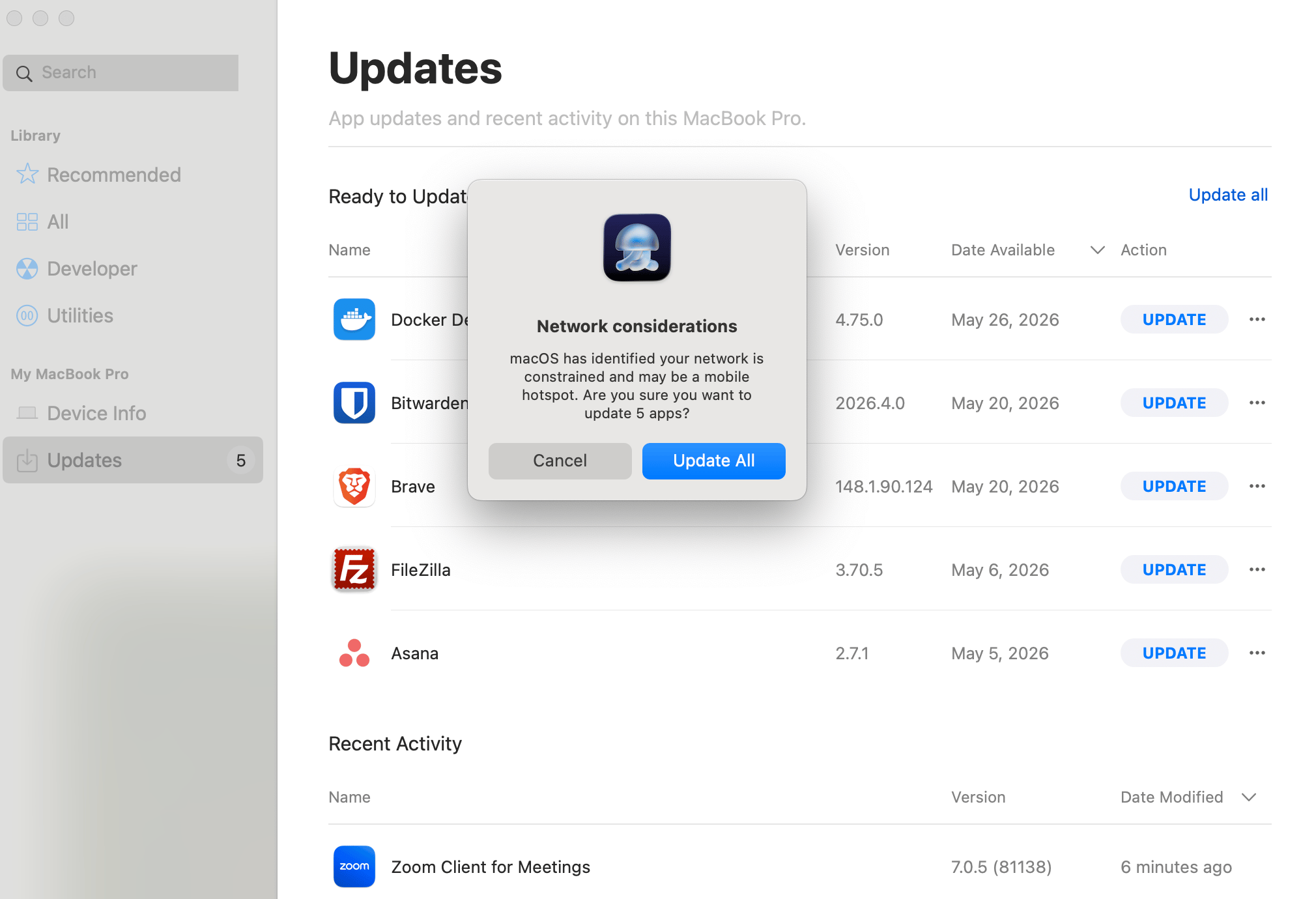
For installs, updates, and reinstalls that a user starts in [Iru Self Service](/en/endpoint/settings/self-service/self-service-for-macos) or the Iru menu bar app, the agent warns before downloading on a limited connection. The message reflects the network type macOS detected.
branding. The **Agent** app name changed from **Kandji Agent** to **Iru Agent**. Please update **scripts, automations, and utilities** that still reference the old app names.
### About the macOS Agent
Iru Endpoint's proprietary macOS agent extends the functionality of our platform beyond what the MDM framework can achieve by itself. The Iru Agent for macOS is custom-built in Swift for **Apple devices**. The agent also installs a system extension that uses Apple's Endpoint Security framework for extra device management, plus EDR and Vulnerability Management.
#### Actions performed by the Iru Agent
Blocks applications specified in the App Blocking Library Item and presents the Iru Endpoint dialog window to end users. Handled by the Iru system extension to ensure blocks happen as quickly and effectively as possible.
Installs and enforces updates for Auto Apps. On limited networks, background update downloads may be deferred until enforcement is due soon. See [Downloads on limited networks](#downloads-on-limited-networks) below.
Collects the full application list and other system details the MDM framework cannot always pull. Application inventory data in Prism is gathered by the Iru system extension, allowing it to be made available in near real-time.
Installs DMG, PKG, and ZIP files and runs audit, pre-install, and post-install scripts. Can force restarts when that option is enabled. See also [Configure the Mac Custom App Library Item](/en/endpoint/library/library-items-profiles/configure-the-custom-apps-library-item).
Installs Custom Printers with downloadable files. On limited networks, background downloads may be deferred until enforcement is due soon. See [Downloads on limited networks](#downloads-on-limited-networks) below.
EDR and its associated scans are completed using the Iru Agent.
Built-in Blueprint options that control system-level settings on Mac computers. The Iru Agent enforces them at check-in.
All scripts are run as root by the Iru Agent.
Vulnerability Management and its associated scans are completed using the Iru Agent.
#### Downloads on limited networks
When macOS reports that the current connection is constrained (for example Low Data Mode), expensive (for example a mobile hotspot), or both, the Iru Agent adjusts when it downloads managed software.
During background processing at [check-in](/en/endpoint/devices/device-check-in/device-check-in), the agent defers Auto App update downloads and Custom Printer file downloads on limited networks unless the install is due within 8 hours. When enforcement is approaching, the agent proceeds with the download and records the reason in the agent log.
For installs, updates, and reinstalls that a user starts in [Iru Self Service](/en/endpoint/settings/self-service/self-service-for-macos) or the Iru menu bar app, the agent warns before downloading on a limited connection. The message reflects the network type macOS detected.
 The agent still downloads managed software without deferral in these cases:
* First-time installs, including Library Items selected for install during [Automated Device Enrollment](/en/endpoint/settings/apple-integrations/configure-automated-device-enrollment)
* Forced installs from [Vulnerability Response](/en/endpoint/vulnerability-management/configure-the-vulnerability-response-library-item)
Agent logs record deferrals, proceed decisions, and user cancellations so you can see why an install or update ran or did not run. See [Troubleshooting Agent Check-Ins](/en/endpoint/devices/device-check-in/troubleshooting-agent-check-ins) for log locations and related steps.
```text agent.log theme={null}
AutoApp Discord: deferring download because network is constrained
AutoApp Firefox: network is constrained, proceeding with download due to impending enforcement at 2025-11-12 23:00:00 +0000
AutoApp Asana: network is expensive and constrained, proceeding with download due to impending enforcement at 2023-09-29 16:00:00 +0000
Install/update of 1Password 8 cancelled by user on limited network.
```
### About the MDM Framework
Using Apple's MDM framework in macOS, iOS, iPadOS, and tvOS, you can deploy and configure apps and settings, collect device information, and remotely lock or wipe devices. This can be done with corporate-owned as well as Bring Your Own Device (BYOD) devices.
One advantage of using Apple's MDM framework is how quickly it can communicate with devices. That means commands (such as to lock or erase devices) are implemented almost instantly. This is made possible by the [Apple Push Notification service (APNs)](/en/endpoint/settings/apple-integrations/configure-apple-push-notification-service). Apple devices are constantly polling APNs for notifications requesting that managed devices check in with their MDM servers. Because of this constant polling, management of online devices can happen almost instantly.
#### Actions performed by MDM
Installs apps acquired via Apple Business or Apple School Manager using the MDM protocol (formerly VPP). See also [Add Apps from Apps and Books](/en/endpoint/settings/apple-integrations/add-apps-from-apps-and-books-to-iru-endpoint).
Enrolls devices during Setup Assistant using the MDM protocol (formerly DEP).
When a macOS device enrolls into Iru Endpoint, one of the first commands is `InstallEnterpriseApplication` to install the Iru Agent.
Automatically sends `InstallEnterpriseApplication` when the device checked in via MDM in the last 7 days but not via the Iru Agent in the last 7 days. See [Troubleshooting Agent Check-Ins](/en/endpoint/devices/device-check-in/troubleshooting-agent-check-ins) if the agent is not checking in.
Delivers commands such as those in the device Action menu through the MDM protocol.
When users download the enrollment profile from the enrollment portal, device enrollment is handled through the MDM protocol.
Delivers MDM configuration profiles to the device. See [Library Overview](/en/endpoint/library/library-items-profiles/library-overview) for how profiles and Library Items are managed.
### About the Windows Agent
Windows devices in Iru Endpoint are managed through a combination of Windows MDM (mobile device management) and the Iru Agent. MDM delivers device policies and configuration. The Iru Agent handles app inventory, app deployment, and PowerShell scripts on a 15-minute check-in cycle. Devices are enrolled via the [Enrollment Portal](/en/endpoint/enrollment/windows/configuring-windows-enrollment); the agent is installed automatically as part of MDM enrollment.
For check-in timing and how MDM enforcement differs from agent work, see [Device Check-In](/en/endpoint/devices/device-check-in/device-check-in).
#### Actions performed by the Iru Agent
Installation and updates for assigned Auto Apps are handled via the Iru Agent.
Installs MSI and EXE installers delivered in a zip archive. See also [Configure the Windows Custom App Library Item](/en/endpoint/library/library-items-profiles/configure-the-windows-custom-app-library-item).
Collects and submits application inventory to Iru Endpoint on each agent check-in.
Runs custom PowerShell scripts assigned through Library Items on the agent check-in cycle.
The agent updates itself to a newer version when available.
### About the MDM Framework
Windows includes a built-in management component that communicates with the management server using the [MDM protocol](https://learn.microsoft.com/en-us/windows/client-management/mdm-overview). Using Windows MDM, you can enroll Windows devices, deploy configuration profiles and system policies, and send commands such as wipe or retire.
New policies and settings changes from an admin are event-driven via [Windows Push Notification Services (WNS)](https://learn.microsoft.com/en-us/windows/client-management/push-notification-windows-mdm). On online devices, they generally apply within a couple of minutes. If a user manually changes something on the device (for example, local firewall settings), MDM remediates that drift on the daily check-in (every 24 hours). **Perform Recurring Check-In** pushes down MDM policies that were waiting to deploy; it does not remediate existing policies.
#### Actions performed by MDM
Establishes the MDM connection during enrollment and installs the Iru Agent as part of the process. See [Windows Enrollment](/en/endpoint/getting-started/enrollment/windows-enrollment) and [User Experience with Windows Enrollment](/en/endpoint/enrollment/windows/user-experience-with-windows-enrollment).
Delivers Wi-Fi, Windows Firewall, BitLocker, and other system policies through the MDM channel. These align with Microsoft's [MDM security baseline](https://learn.microsoft.com/en-us/windows/client-management/mdm-overview#mdm-security-baseline). Configure via Library Items such as [Wi-Fi](/en/endpoint/library/library-items-profiles/configure-the-wi-fi-library-item), [Windows Firewall](/en/endpoint/library/library-items-profiles/configure-the-windows-firewall-library-item), and [BitLocker](/en/endpoint/library/library-items-profiles/configure-the-bitlocker-library-item).
New admin policy and settings changes (and commands such as wipe or retire) are sent via WNS and generally apply within a couple of minutes when the device is online.
Every 24 hours, MDM validates configuration against admin intent and remediates local drift (for example, if a user manually changed firewall settings) and collects daily device information.
Delivers configuration profiles through the MDM protocol. See [Library Overview](/en/endpoint/library/library-items-profiles/library-overview) for how Library Items and profiles are managed.
For Windows agent troubleshooting (force check-in, reinstall), see [Troubleshooting Agent Check-Ins](/en/endpoint/devices/device-check-in/troubleshooting-agent-check-ins). Windows agent logs are located at `%ProgramData%\kandji\agent\logs`.
The agent still downloads managed software without deferral in these cases:
* First-time installs, including Library Items selected for install during [Automated Device Enrollment](/en/endpoint/settings/apple-integrations/configure-automated-device-enrollment)
* Forced installs from [Vulnerability Response](/en/endpoint/vulnerability-management/configure-the-vulnerability-response-library-item)
Agent logs record deferrals, proceed decisions, and user cancellations so you can see why an install or update ran or did not run. See [Troubleshooting Agent Check-Ins](/en/endpoint/devices/device-check-in/troubleshooting-agent-check-ins) for log locations and related steps.
```text agent.log theme={null}
AutoApp Discord: deferring download because network is constrained
AutoApp Firefox: network is constrained, proceeding with download due to impending enforcement at 2025-11-12 23:00:00 +0000
AutoApp Asana: network is expensive and constrained, proceeding with download due to impending enforcement at 2023-09-29 16:00:00 +0000
Install/update of 1Password 8 cancelled by user on limited network.
```
### About the MDM Framework
Using Apple's MDM framework in macOS, iOS, iPadOS, and tvOS, you can deploy and configure apps and settings, collect device information, and remotely lock or wipe devices. This can be done with corporate-owned as well as Bring Your Own Device (BYOD) devices.
One advantage of using Apple's MDM framework is how quickly it can communicate with devices. That means commands (such as to lock or erase devices) are implemented almost instantly. This is made possible by the [Apple Push Notification service (APNs)](/en/endpoint/settings/apple-integrations/configure-apple-push-notification-service). Apple devices are constantly polling APNs for notifications requesting that managed devices check in with their MDM servers. Because of this constant polling, management of online devices can happen almost instantly.
#### Actions performed by MDM
Installs apps acquired via Apple Business or Apple School Manager using the MDM protocol (formerly VPP). See also [Add Apps from Apps and Books](/en/endpoint/settings/apple-integrations/add-apps-from-apps-and-books-to-iru-endpoint).
Enrolls devices during Setup Assistant using the MDM protocol (formerly DEP).
When a macOS device enrolls into Iru Endpoint, one of the first commands is `InstallEnterpriseApplication` to install the Iru Agent.
Automatically sends `InstallEnterpriseApplication` when the device checked in via MDM in the last 7 days but not via the Iru Agent in the last 7 days. See [Troubleshooting Agent Check-Ins](/en/endpoint/devices/device-check-in/troubleshooting-agent-check-ins) if the agent is not checking in.
Delivers commands such as those in the device Action menu through the MDM protocol.
When users download the enrollment profile from the enrollment portal, device enrollment is handled through the MDM protocol.
Delivers MDM configuration profiles to the device. See [Library Overview](/en/endpoint/library/library-items-profiles/library-overview) for how profiles and Library Items are managed.
### About the Windows Agent
Windows devices in Iru Endpoint are managed through a combination of Windows MDM (mobile device management) and the Iru Agent. MDM delivers device policies and configuration. The Iru Agent handles app inventory, app deployment, and PowerShell scripts on a 15-minute check-in cycle. Devices are enrolled via the [Enrollment Portal](/en/endpoint/enrollment/windows/configuring-windows-enrollment); the agent is installed automatically as part of MDM enrollment.
For check-in timing and how MDM enforcement differs from agent work, see [Device Check-In](/en/endpoint/devices/device-check-in/device-check-in).
#### Actions performed by the Iru Agent
Installation and updates for assigned Auto Apps are handled via the Iru Agent.
Installs MSI and EXE installers delivered in a zip archive. See also [Configure the Windows Custom App Library Item](/en/endpoint/library/library-items-profiles/configure-the-windows-custom-app-library-item).
Collects and submits application inventory to Iru Endpoint on each agent check-in.
Runs custom PowerShell scripts assigned through Library Items on the agent check-in cycle.
The agent updates itself to a newer version when available.
### About the MDM Framework
Windows includes a built-in management component that communicates with the management server using the [MDM protocol](https://learn.microsoft.com/en-us/windows/client-management/mdm-overview). Using Windows MDM, you can enroll Windows devices, deploy configuration profiles and system policies, and send commands such as wipe or retire.
New policies and settings changes from an admin are event-driven via [Windows Push Notification Services (WNS)](https://learn.microsoft.com/en-us/windows/client-management/push-notification-windows-mdm). On online devices, they generally apply within a couple of minutes. If a user manually changes something on the device (for example, local firewall settings), MDM remediates that drift on the daily check-in (every 24 hours). **Perform Recurring Check-In** pushes down MDM policies that were waiting to deploy; it does not remediate existing policies.
#### Actions performed by MDM
Establishes the MDM connection during enrollment and installs the Iru Agent as part of the process. See [Windows Enrollment](/en/endpoint/getting-started/enrollment/windows-enrollment) and [User Experience with Windows Enrollment](/en/endpoint/enrollment/windows/user-experience-with-windows-enrollment).
Delivers Wi-Fi, Windows Firewall, BitLocker, and other system policies through the MDM channel. These align with Microsoft's [MDM security baseline](https://learn.microsoft.com/en-us/windows/client-management/mdm-overview#mdm-security-baseline). Configure via Library Items such as [Wi-Fi](/en/endpoint/library/library-items-profiles/configure-the-wi-fi-library-item), [Windows Firewall](/en/endpoint/library/library-items-profiles/configure-the-windows-firewall-library-item), and [BitLocker](/en/endpoint/library/library-items-profiles/configure-the-bitlocker-library-item).
New admin policy and settings changes (and commands such as wipe or retire) are sent via WNS and generally apply within a couple of minutes when the device is online.
Every 24 hours, MDM validates configuration against admin intent and remediates local drift (for example, if a user manually changed firewall settings) and collects daily device information.
Delivers configuration profiles through the MDM protocol. See [Library Overview](/en/endpoint/library/library-items-profiles/library-overview) for how Library Items and profiles are managed.
For Windows agent troubleshooting (force check-in, reinstall), see [Troubleshooting Agent Check-Ins](/en/endpoint/devices/device-check-in/troubleshooting-agent-check-ins). Windows agent logs are located at `%ProgramData%\kandji\agent\logs`.